無限キャンバスの作り方|マルチボードで描く無限ズーム
2025年1月15日
·
8分
マルチボードは、これまでMagmaに追加した中でも特に大きく複雑な機能です。ほぼ無限に広がる「無限キャンバス」を作れるなど、さまざまな可能性が広がります。作品やストーリーに新しい奥行きを加える面白い方法になると考えています。どんな作品が生まれるのか楽しみです。この記事では、無限キャンバスの作り方を順番に紹介します。
準備
まず、アートデスクかアートスペースから新しいマルチボードを作成します。この方法には「アートボードを追加」ツールが必要なため、かならずマルチボードで作成してください。
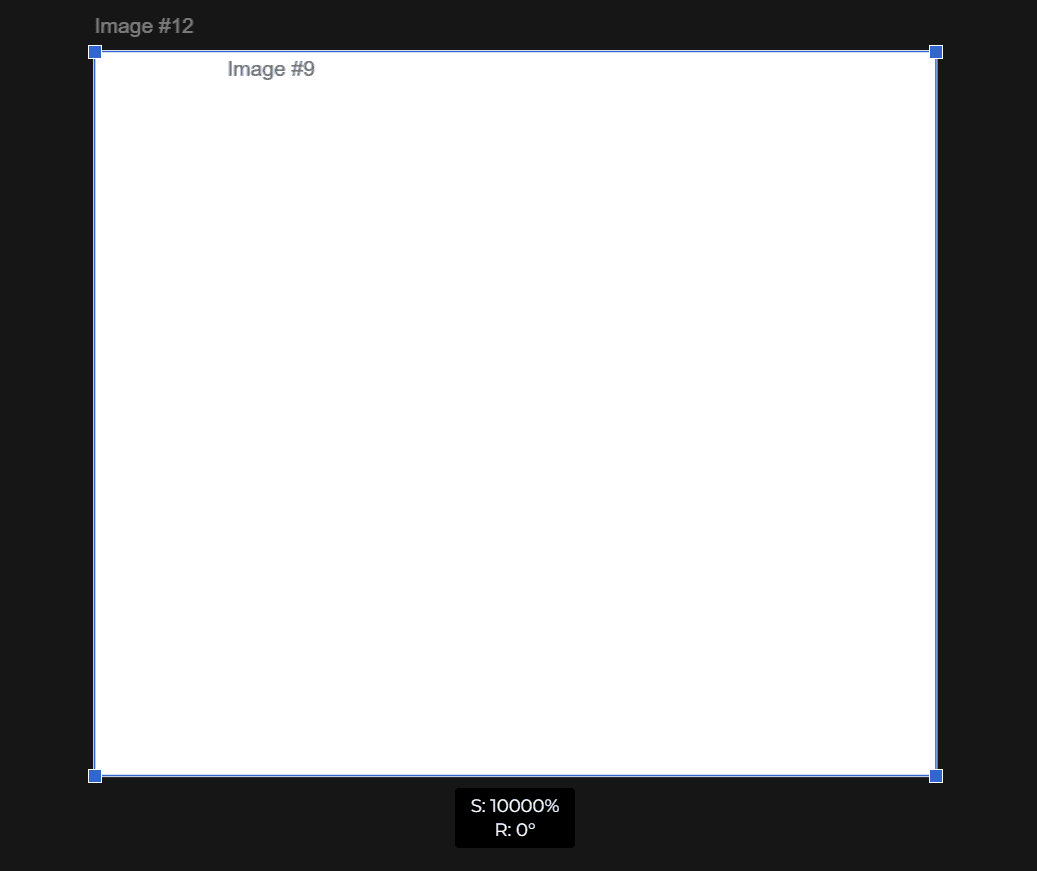
エディターが開いたら移動ツールに切り替え、アートボードをタップして10,000%まで拡大します。こうすると、さらに深くズームインできるようになります。
マルチボードの使い方について詳しくは、ガイドを確認してください。
描き始める
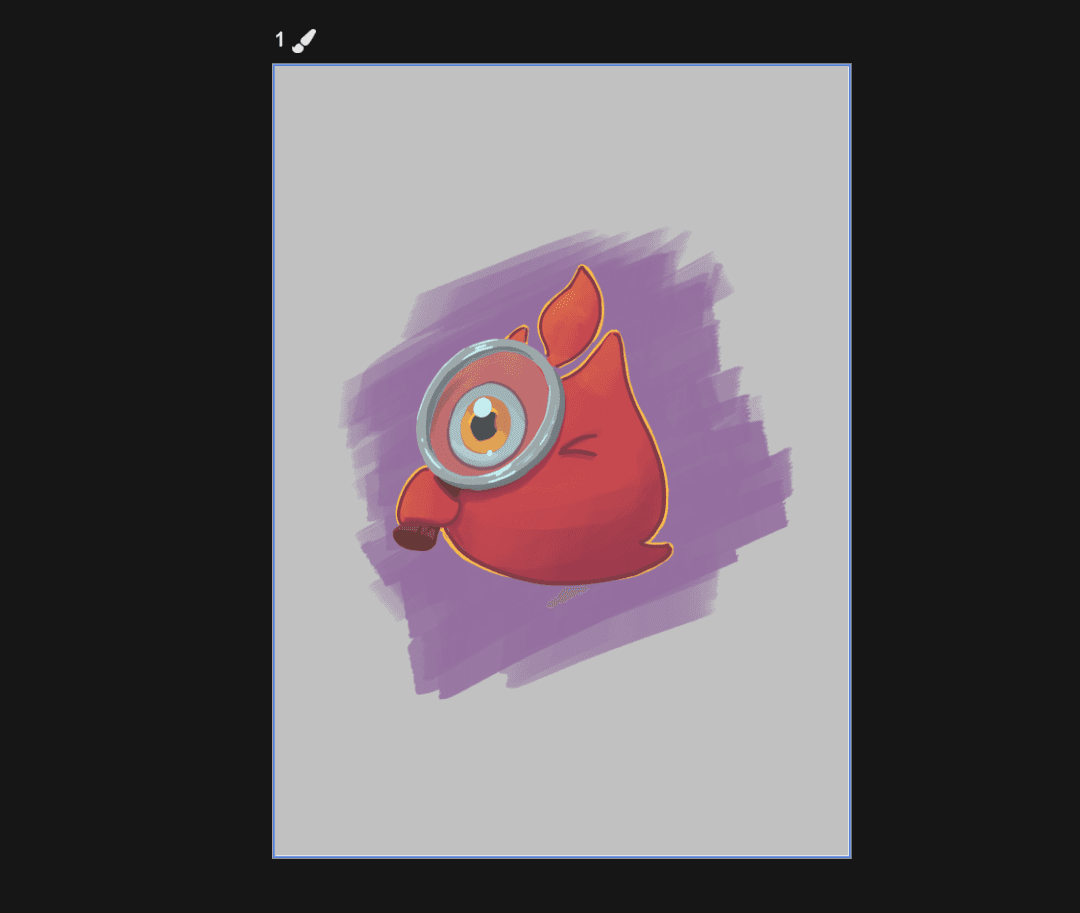
これで描き始める準備ができました。ブラシツールに切り替え、アートボードをタップして始めましょう。
これが、いちばんズームアウトした状態のメインのアートボードです。追加するアートボードは、ズームインできるようにこの上に重ねていきます。
最初のズームエリアを作る
ズームインしたい部分は、あらかじめ決めておきましょう。そこに新しいアートボードを作ります。
まず、今のアートボードの外に新しいアートボードを作成します。
キャンバス全体が見えるまでズームアウトします。
「アートボードを追加」ツールに切り替え、作品を1回タップします。マルチボードモードに切り替わり、レイヤーパネルの表示が変わります。
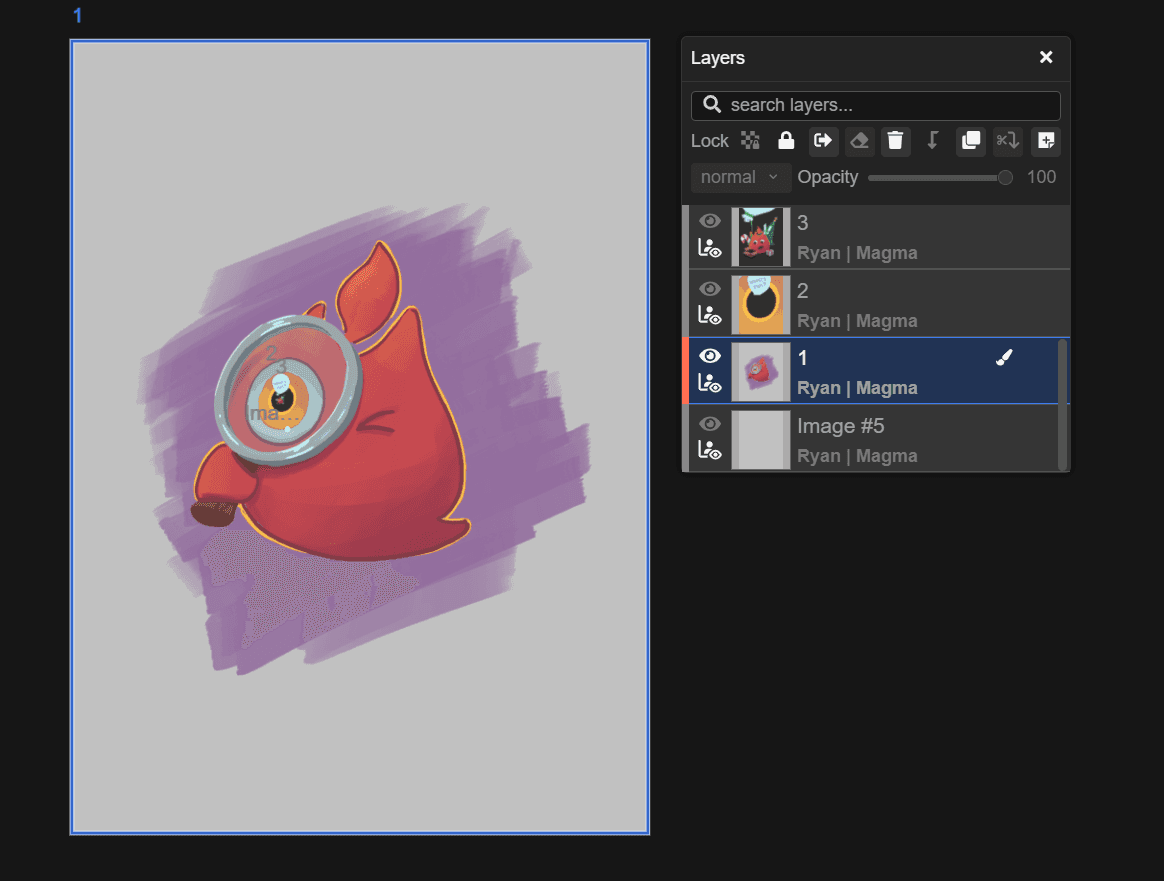
レイヤーパネルでアートボードをタップし、「複製」ボタンを押します。同じサイズ・縮尺のアートボードができます。
作成したアートボードをタップし(自動で移動ツールに切り替わります)、角の1つをドラッグして縮小します。縮小しても解像度は変わりません。
ズームインしたい部分の上にアートボードを配置します。
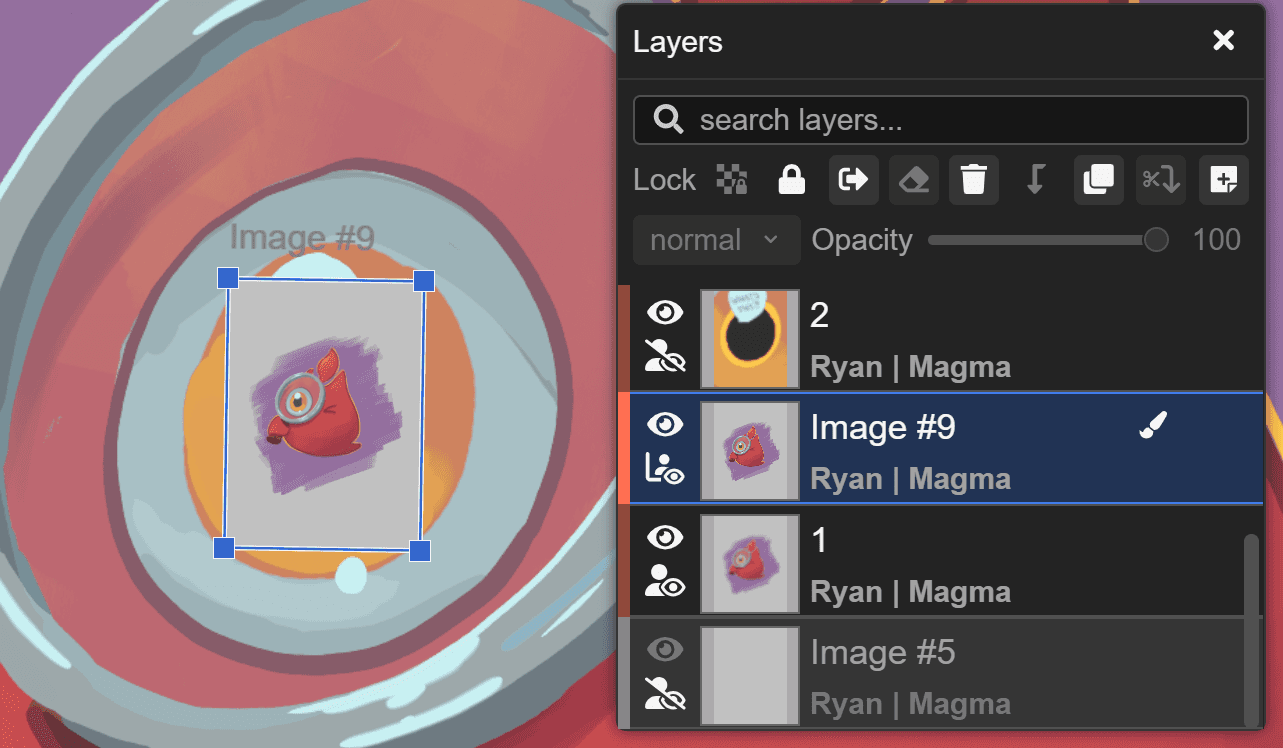
次に、新しいアートボードを周りや下の絵に合わせて描き込みます。そのあと、そのアートボードのメインになるものを描きましょう。
この手順を何度か繰り返し、ズームインする場所ごとにアートボードを追加して小さくしていきます。
レイヤーの順番
ズームインするアートボードが正しい順番に並んでいるか確認してください。順番がずれていると、見つけにくくなることがあります。奥から手前へ1つずつ順番に開き、正しく並んでいるか確かめましょう。
レイヤーリストの下のほうにある大きなアートボードに接続すると、そのアートボードが手前に表示され、ほかのアートボードは後ろに隠れます。ただし、実際のレイヤーの順番は変わっていません。
仕上げ
アートボードから切断してマルチボードモードに戻り、「画面全体表示」で作品全体を画面に収めます。これでズームイン・ズームアウトを試せます。高画質のプレビューが読み込まれるまで、少し時間がかかることもあります。
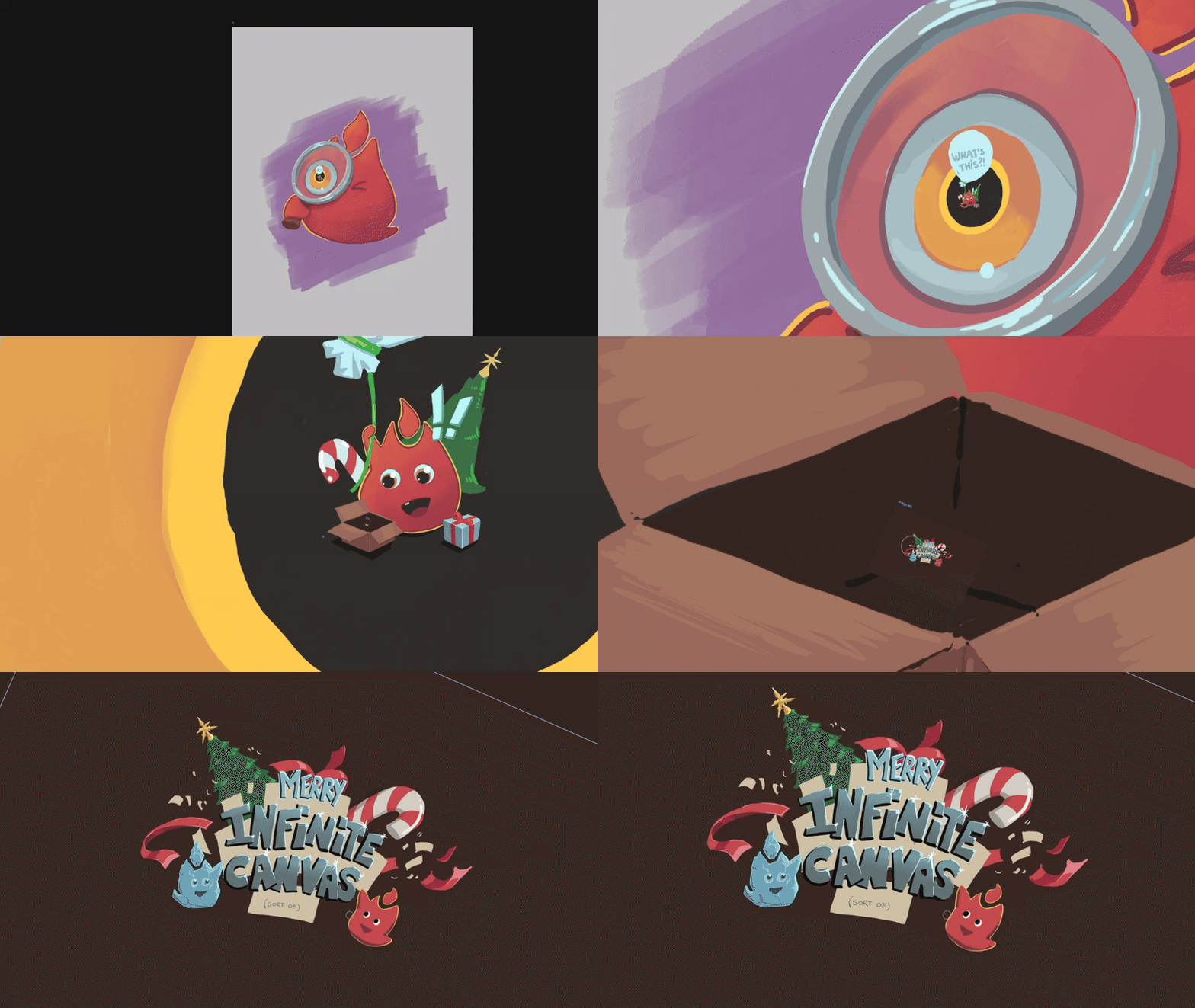
無限キャンバスを披露する
こうした作品の魅力を伝えるには、動画がいちばんです。ズームインしながら奥の階層を見せる様子を、画面録画やタブレットの手元撮影で残しましょう。SNSに投稿するときは、ぜひMagmaをタグ付けしてください。


関連記事

·
2026年9月17日
Magmaに、アーティストLikewiseさんのクリエイターブラシパックが3つ登場しました。線画・塗り用のDuality、エフェクト用のKiraKira、無料のPoorman’sを紹介します。

Ryan Allan
·
2026年9月3日
アートジャムを予約して、開催日時を事前に告知できるようになりました。新しいアートジャムの作成手順や、並べ替え・検索、自動モデレーションなどの改善も紹介します。

·
2026年6月12日
ブラウザのプッシュ通知に対応しました。アプリがバックグラウンドでも、友達からのメッセージや一緒に描くお誘いを見逃しません。新しい通知設定と投稿のピン留めも紹介します。
Ryan Allan
·
2026年5月29日
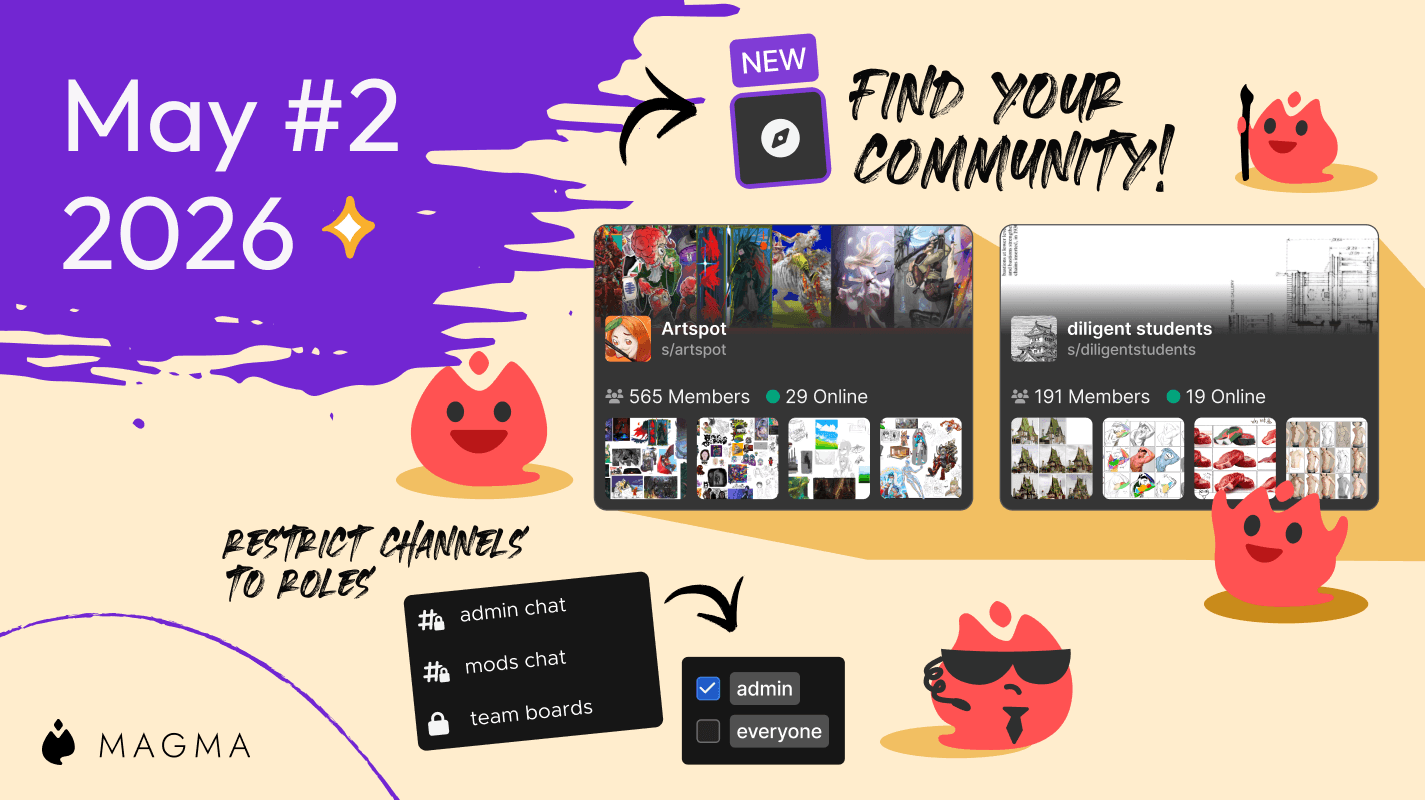
新しいアートスペース一覧ページで、同じ趣味を持つアーティストのコミュニティを探せるようになりました。役割ごとにチャンネルの閲覧を制限する機能も追加しています。
Ryan Allan
·
2026年5月7日
Magma PC版(Windows・Mac用デスクトップアプリ)のベータ版を公開しました。大きなキャンバスでも軽い動作、ナビゲーターのように使える資料画面、プッシュ通知などを紹介します。
Ryan Allan
·
2026年5月1日
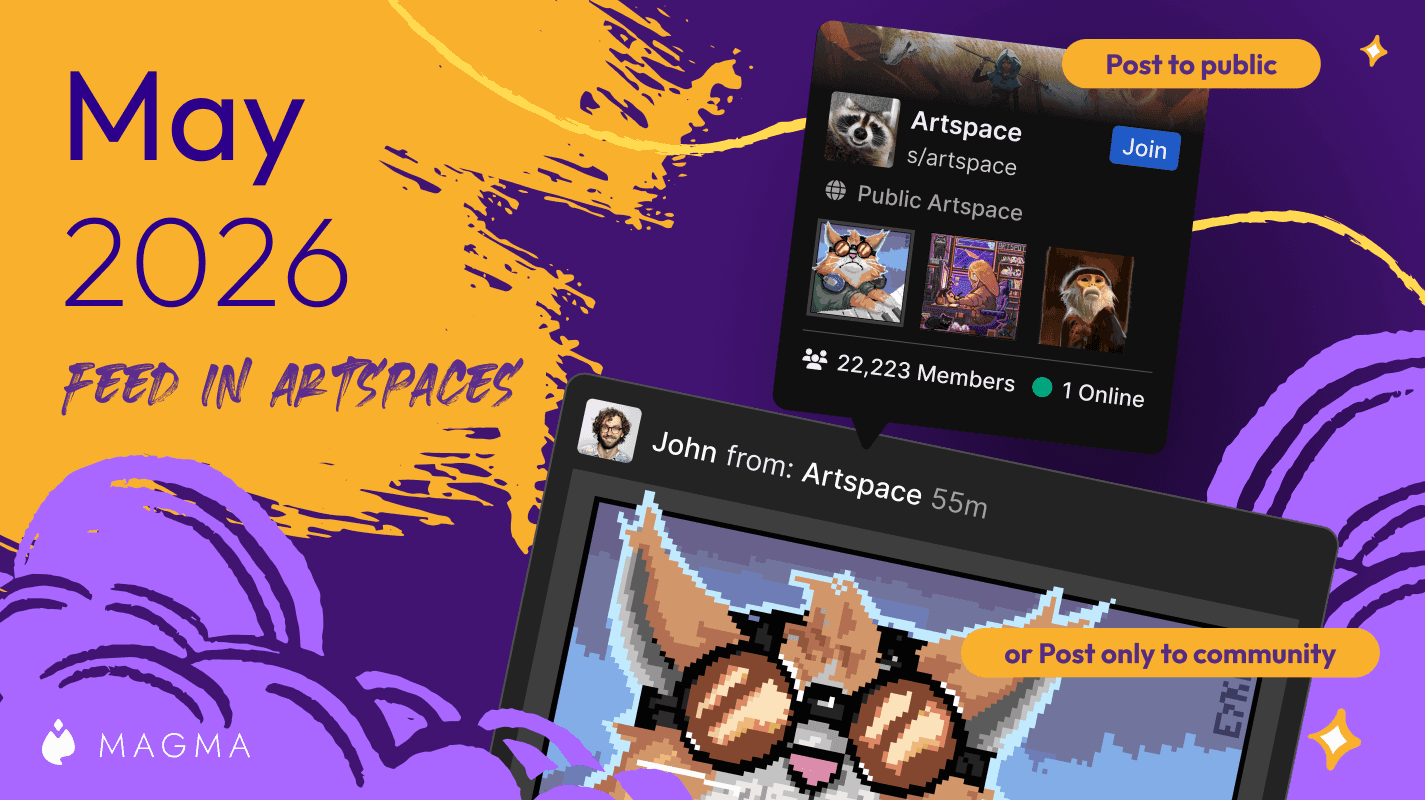
アートスペースに専用のギャラリーとフィードができました。メンバー限定の投稿も、Magma全体に公開する投稿も作れます。フィードの投稿権限の設定も紹介します。
Ryan Allan
·
2026年4月10日
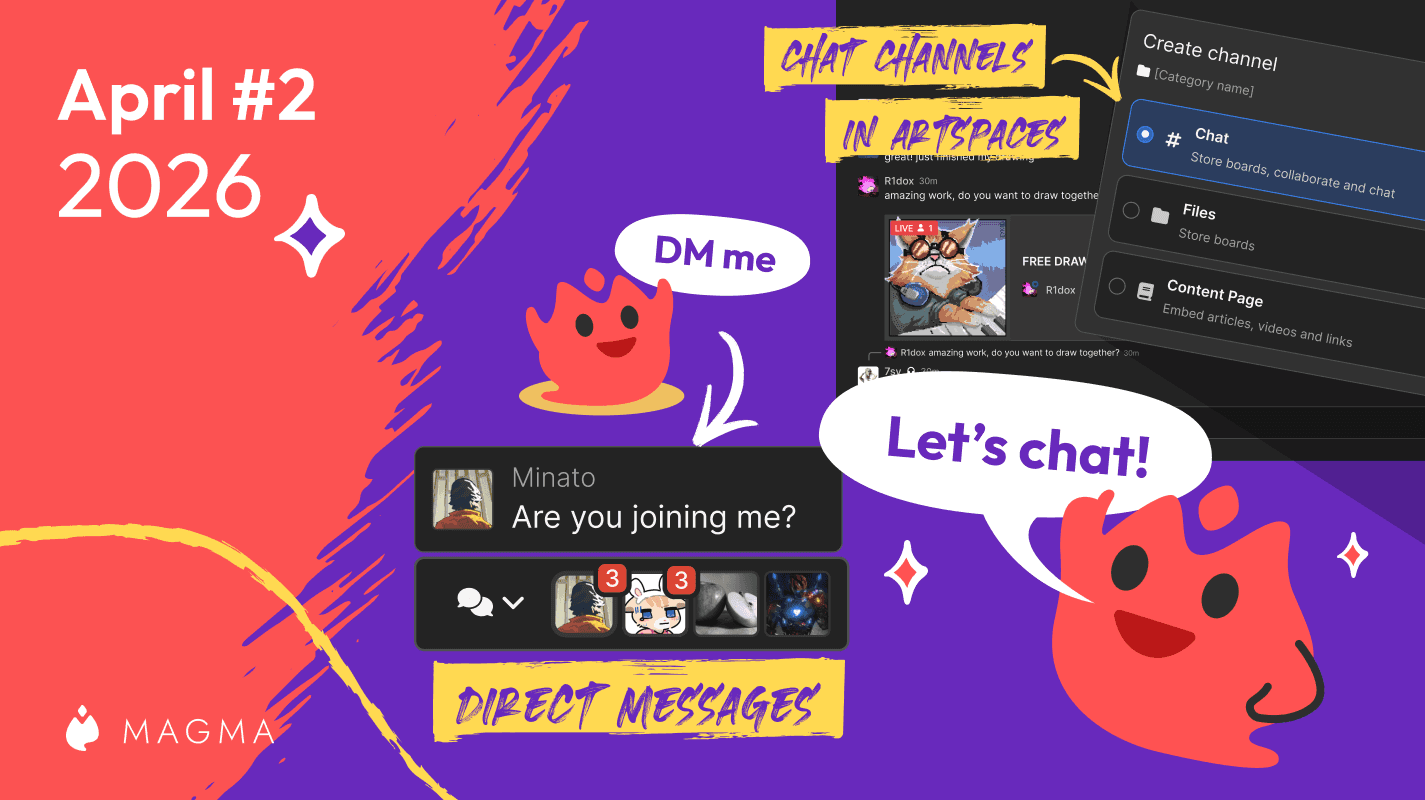
待望のダイレクトメッセージ(DM)と、アートスペースのチャットチャンネルが登場しました。プロジェクトに代わる「カテゴリー」など、新しくなったチャット機能を紹介します。
Ryan Allan
·
2026年4月2日
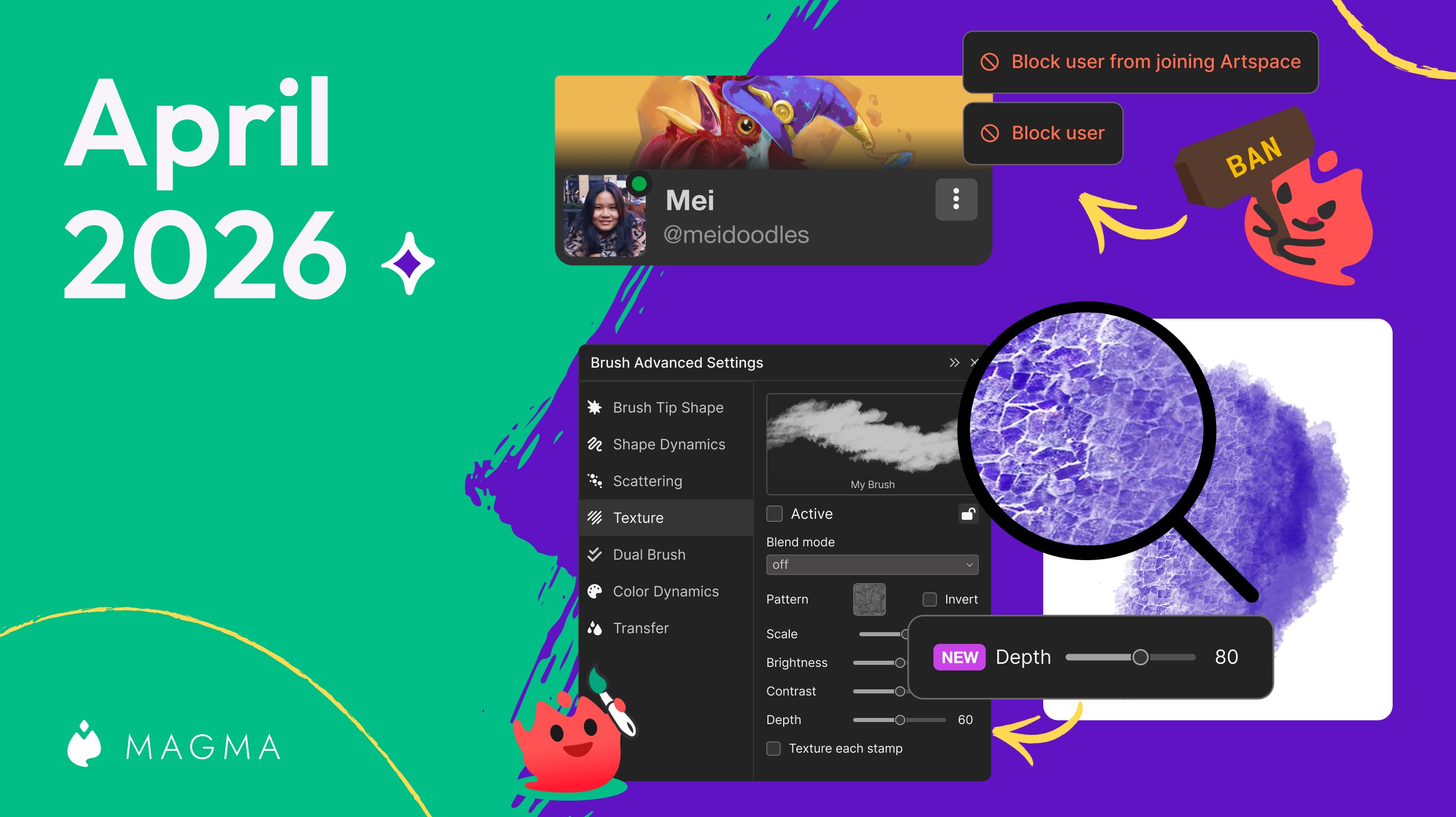
ユーザーのブロックに加えて、キャンバスやアートスペースからのブロックもできるようになりました。ブラシのテクスチャの深さを調整する設定も紹介します。
Ryan Allan
·
2026年3月18日
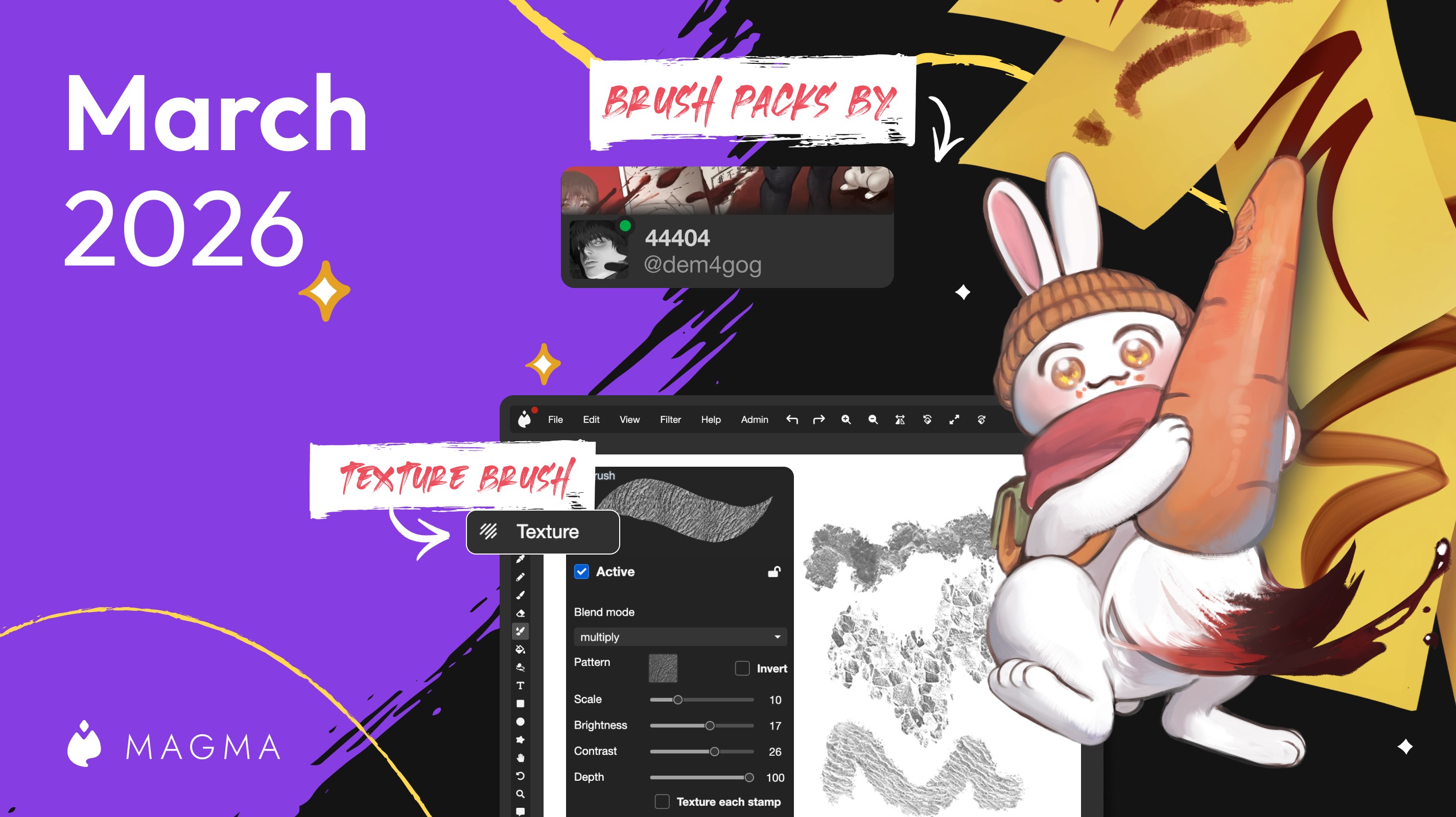
ブラシの詳細設定に、ストロークに模様を加える「テクスチャ」設定が加わりました。Dem4gogさんによる2つの新しいクリエイターブラシパックも紹介します。
Ryan Allan
·
2026年2月11日
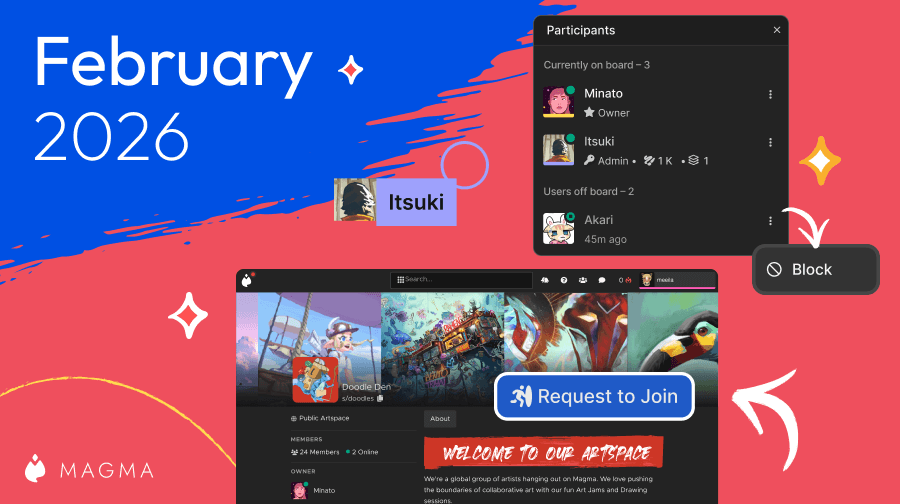
アートスペースに公開プロフィールページができ、参加申請も受け付けられるようになりました。新しい参加者リストなど、そのほかの改善もまとめています。
Ryan Allan
·
2025年1月1日
2025年、Magmaで描かれたストロークは230億以上、作品は1,450万点、アートジャムは約35万回。数字で1年を振り返り、自分の年間データの見方も紹介します。
Ryan Allan
·
2025年12月18日
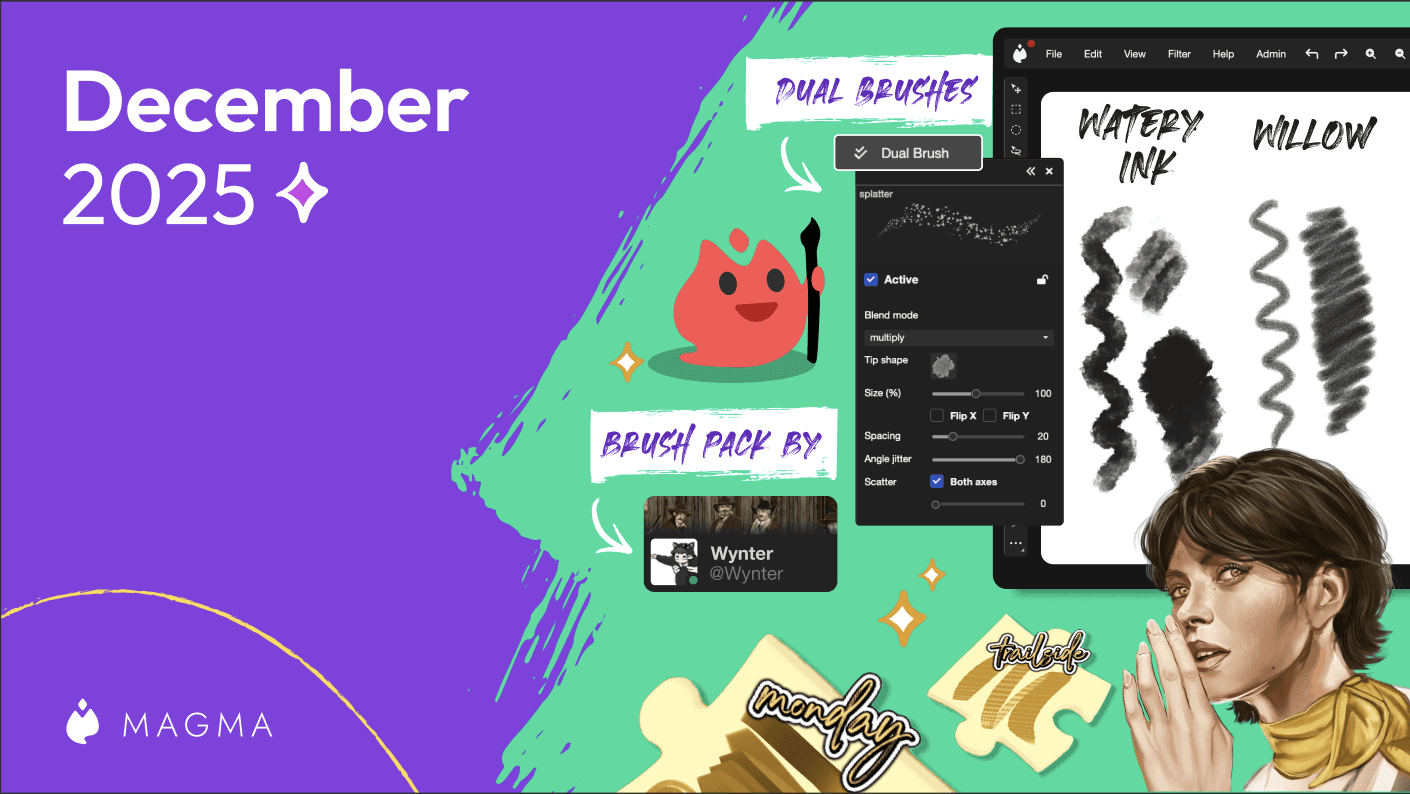
2つのブラシを組み合わせる「デュアルブラシ」設定が加わりました。新しいブラシ2種と、Wynterさんによる有料のクリエイターブラシパックも紹介します。
Ryan Allan
·
2025年1月15日
Magmaのマルチボードで、ほぼ無限にズームできる「無限キャンバス」を作る方法です。アートボードの追加と重ね方、レイヤーの順番の整え方、仕上げまでを手順で解説します。
Ryan Allan
·
2025年11月28日
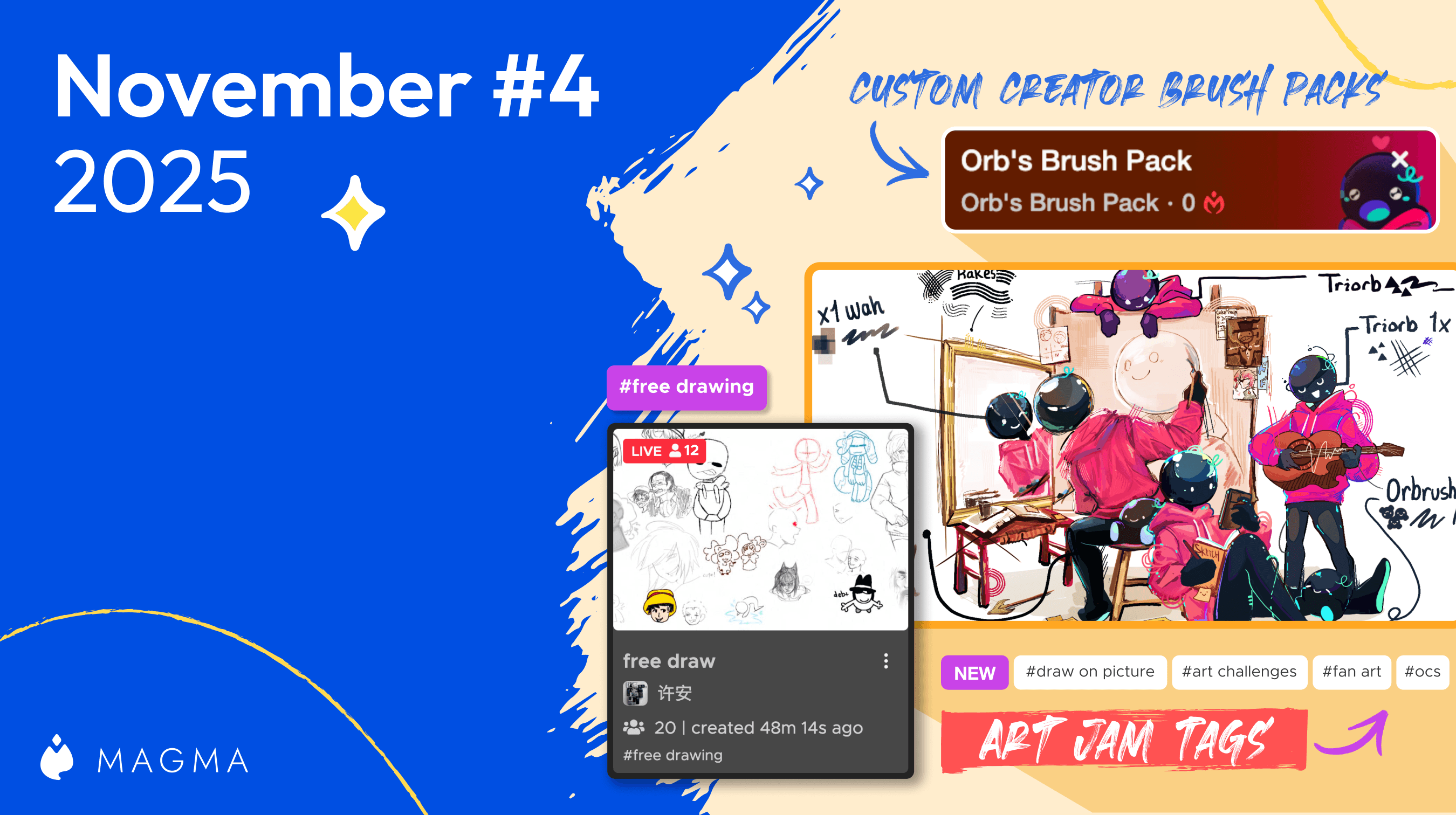
YouTuberでアーティストのOrbさんとコラボした、Magma専用の無料ブラシパックが登場しました。新しいピクセル化のブラシ設定と、アートジャムページの変更も紹介します。
Ryan Allan
·
2025年11月24日
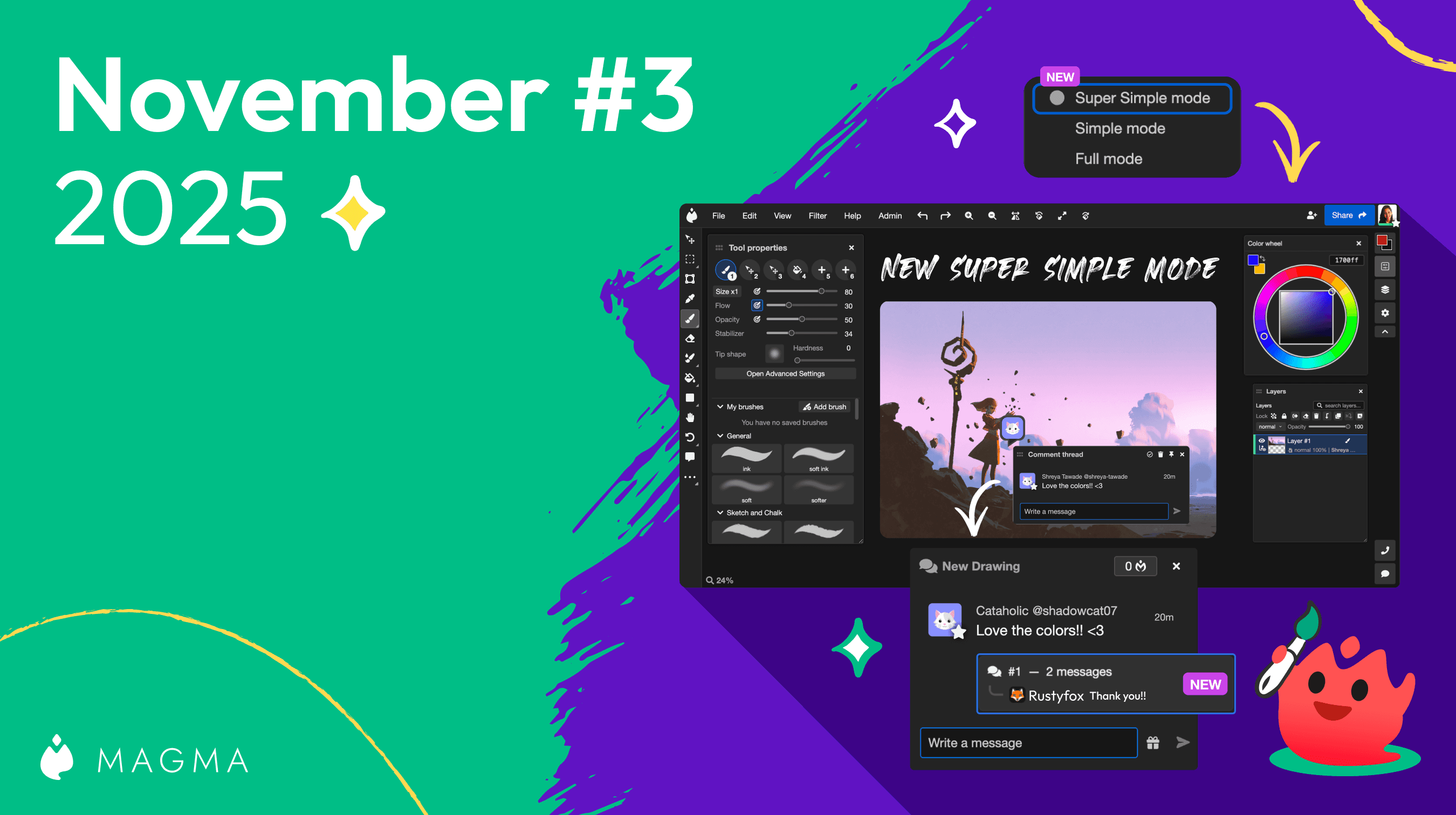
スーパーシンプルモードで、複数のパネルを同時に開けるようになりました。キャンバスのコメントがチャットにも表示されるので、見落としにくくなっています。
Ryan Allan
·
2025年11月13日
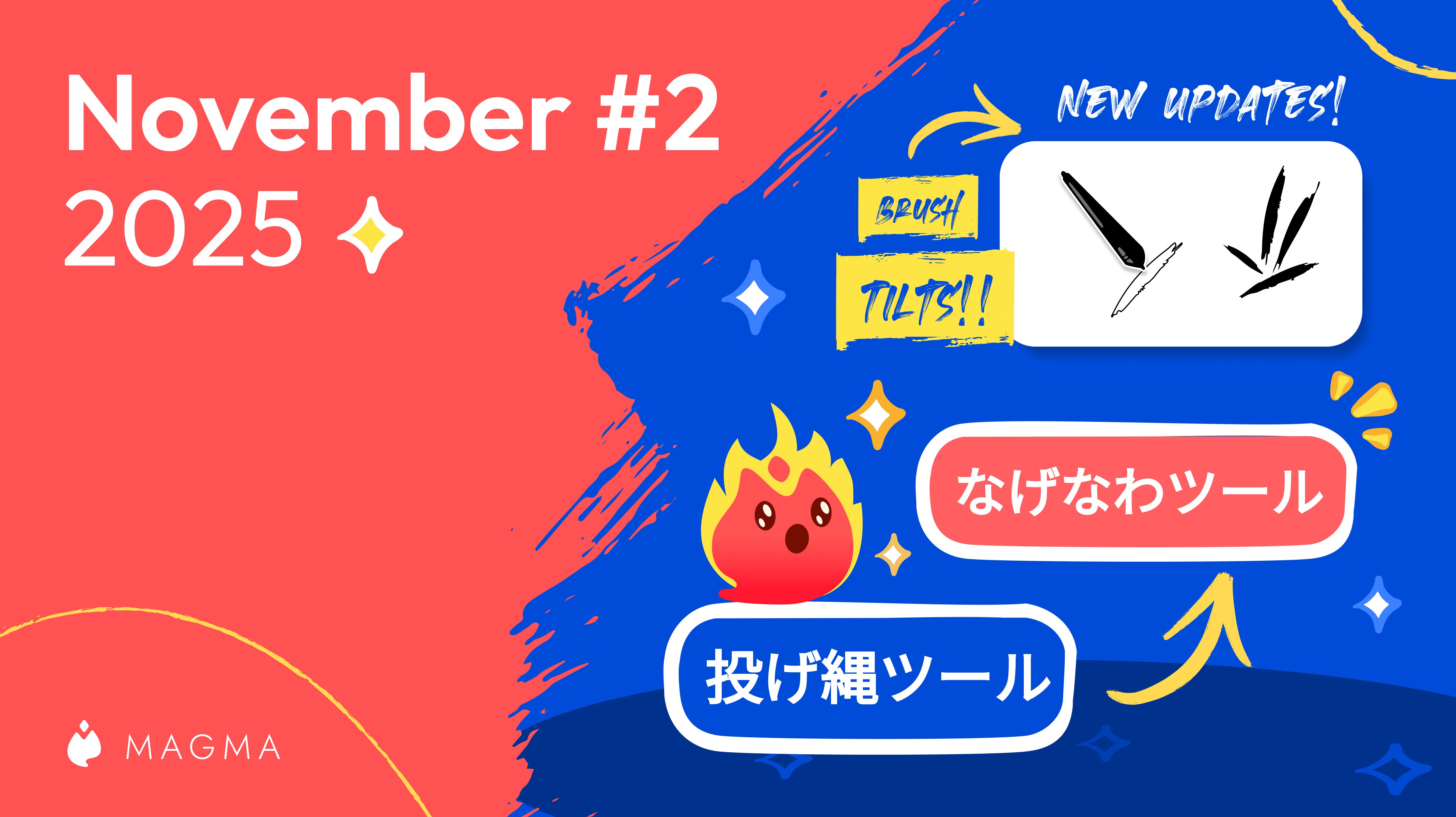
ペンの傾きに合わせてブラシの形を回転できるようになりました。日本語訳の見直しや、広告の表示位置を変えられる設定(ベータ版)も紹介します。
Ryan Allan
·
2025年11月6日
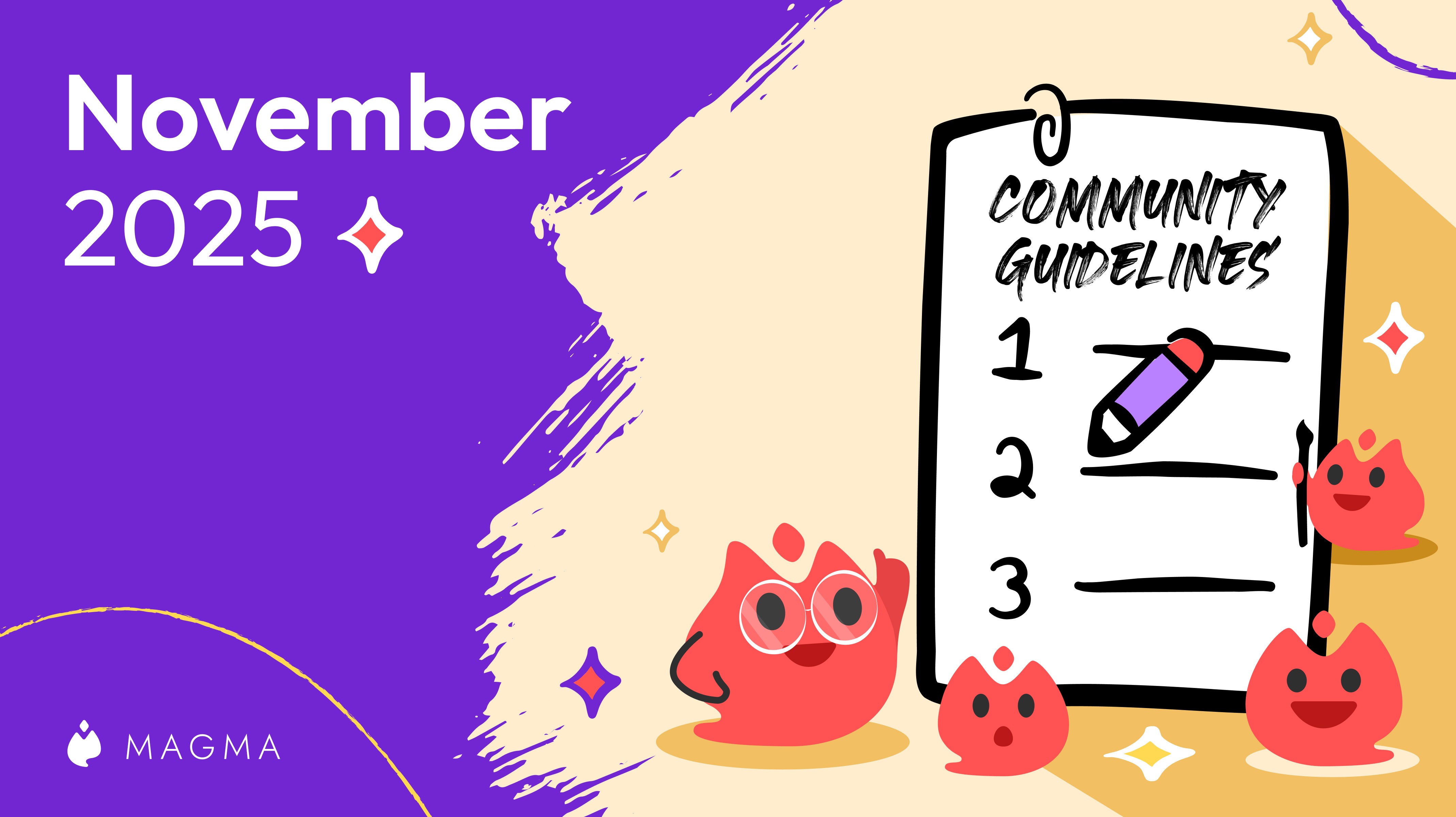
アーティストが安心して過ごせるよう、コミュニティガイドラインを改訂しました。新しいガイドラインは2025年11月12日から適用されます。LightBox Expo 2025のお礼もお伝えします。
Ryan Allan
·
2025年10月25日
ホーム画面に「フォロー」と「発見」のタブができました。選択範囲をチャットに送れる右クリックメニューや、ゆがみツールの十字カーソルなどの改善も紹介します。
Ryan Allan
·
2025年10月9日
顔の輪郭やキャラクターのバランスを手軽に直せる、ゆがみツールが登場しました。絵文字の入力補完や、送ったメッセージの編集・削除など、チャットの改善も紹介します。

Magma
·
2025年10月2日
マルチボードでキャンバスを拡大すると、すぐに高解像度で表示されるようになりました。テキストツールの韓国語フォントと、ブラシの詳細設定の「その他」セクションも追加しています。
Ryan Allan
·
2025年9月25日
ギャラリーに投稿した作品に、ほかのユーザーが描き足せる「リミックス」機能が登場しました。クリエイティブ・コモンズとStoryの2つのライセンスも紹介します。
Ryan Allan
·
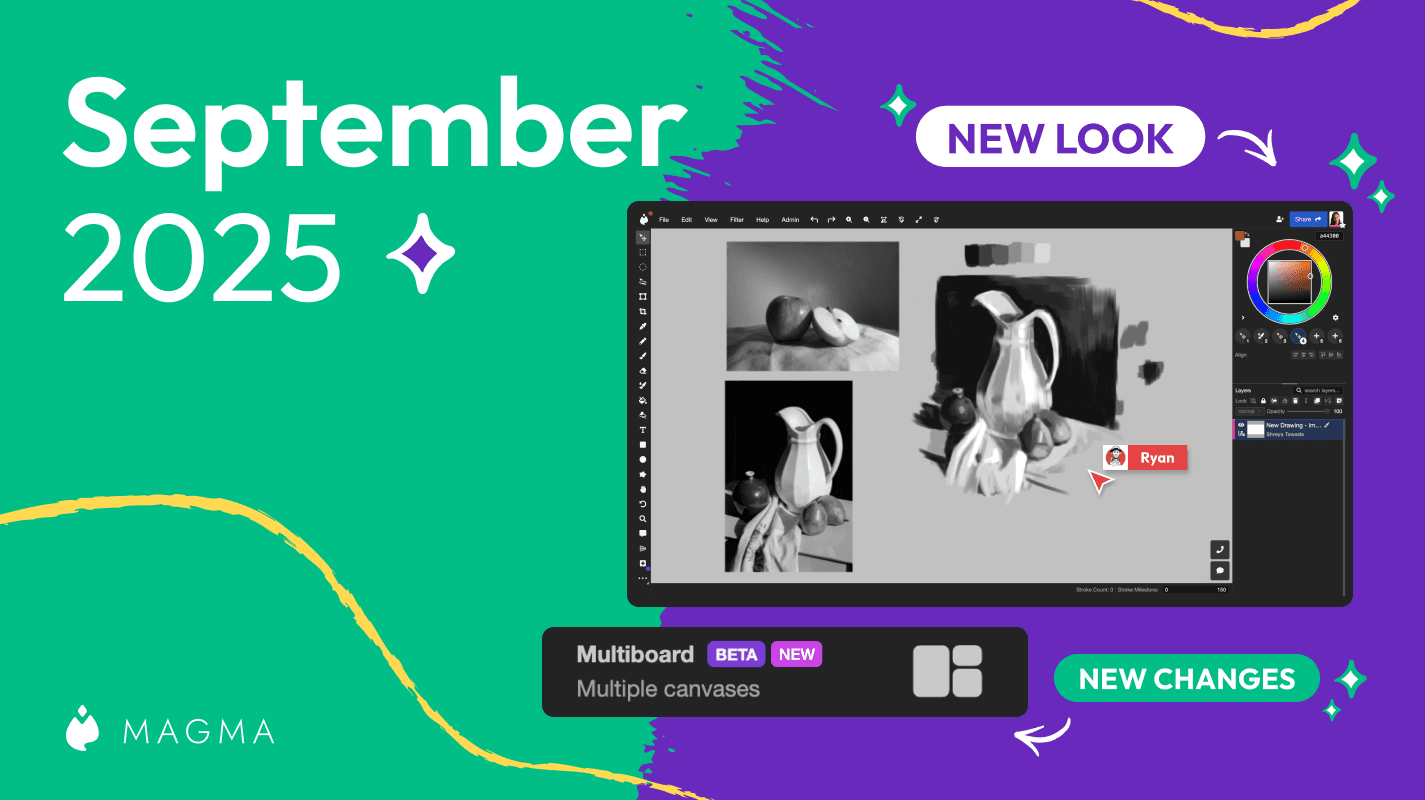
2025年9月4日
世界中のMagmaユーザーの作品が見られる、公開ギャラリー付きのホーム画面ができました。盛り上がっているアートジャムの一覧や、マーカーなどの新しいブラシも紹介します。
Ryan Allan
·
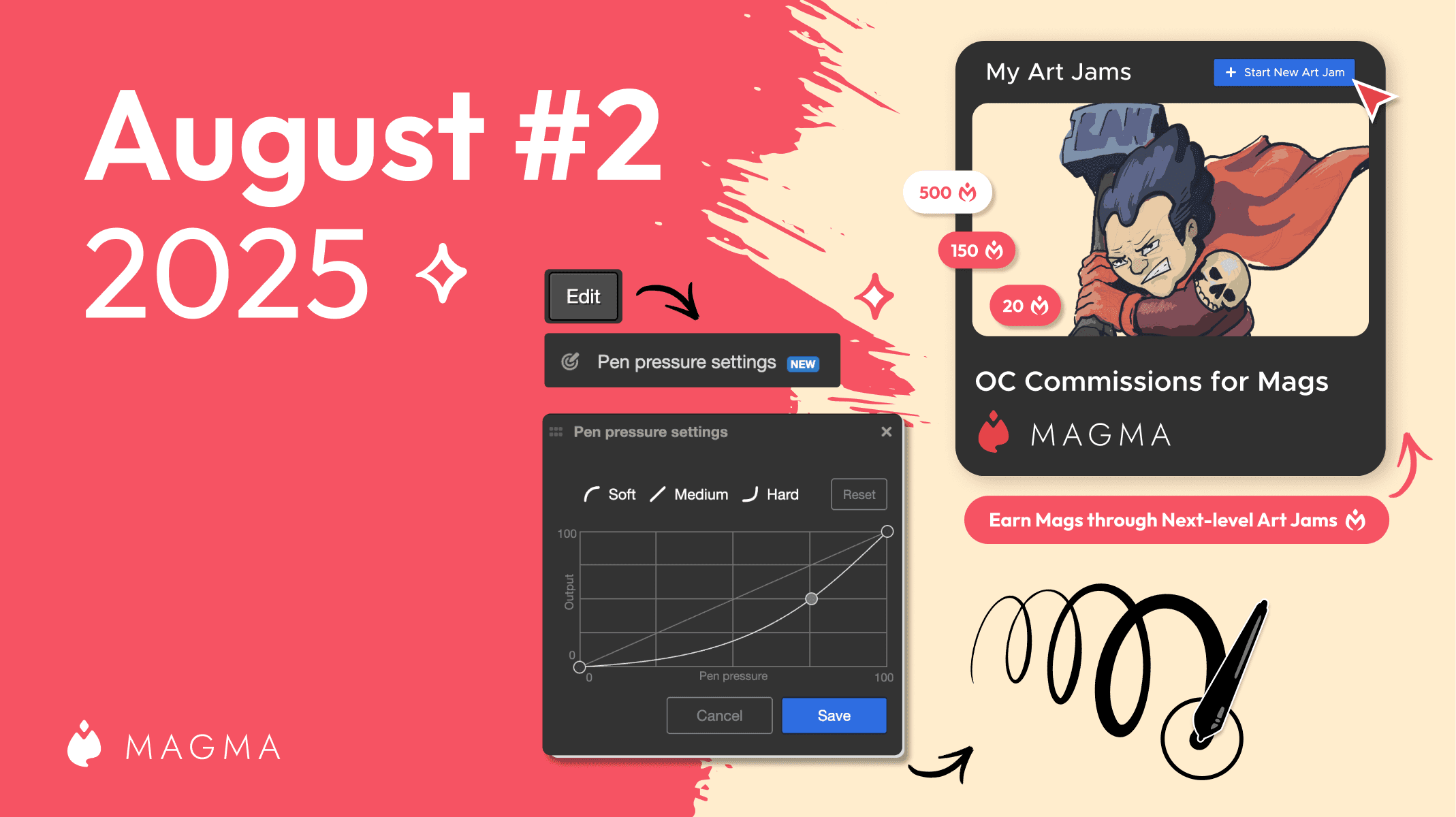
2025年9月2日
MagmaのUIが新しくなり、ダークモードに対応しました。複数のキャンバスを1つの作業スペースに並べられる「マルチボード」も、すべてのユーザーに先行公開しています。
Ryan Allan
·
2025年8月19日
アートジャムに、Magsで支払う参加費を設定できるようになりました。筆圧カーブも調整できるので、軽い筆圧でも濃い線を描けます。

Ryan Allan
·
2025年8月6日
変形ツールに新しいモードが加わり、四隅を1つずつ動かす自由な変形もできるようになりました。選択範囲を背景に合わせたり、フォトバッシュに使ったりできます。

Ryan Allan
·
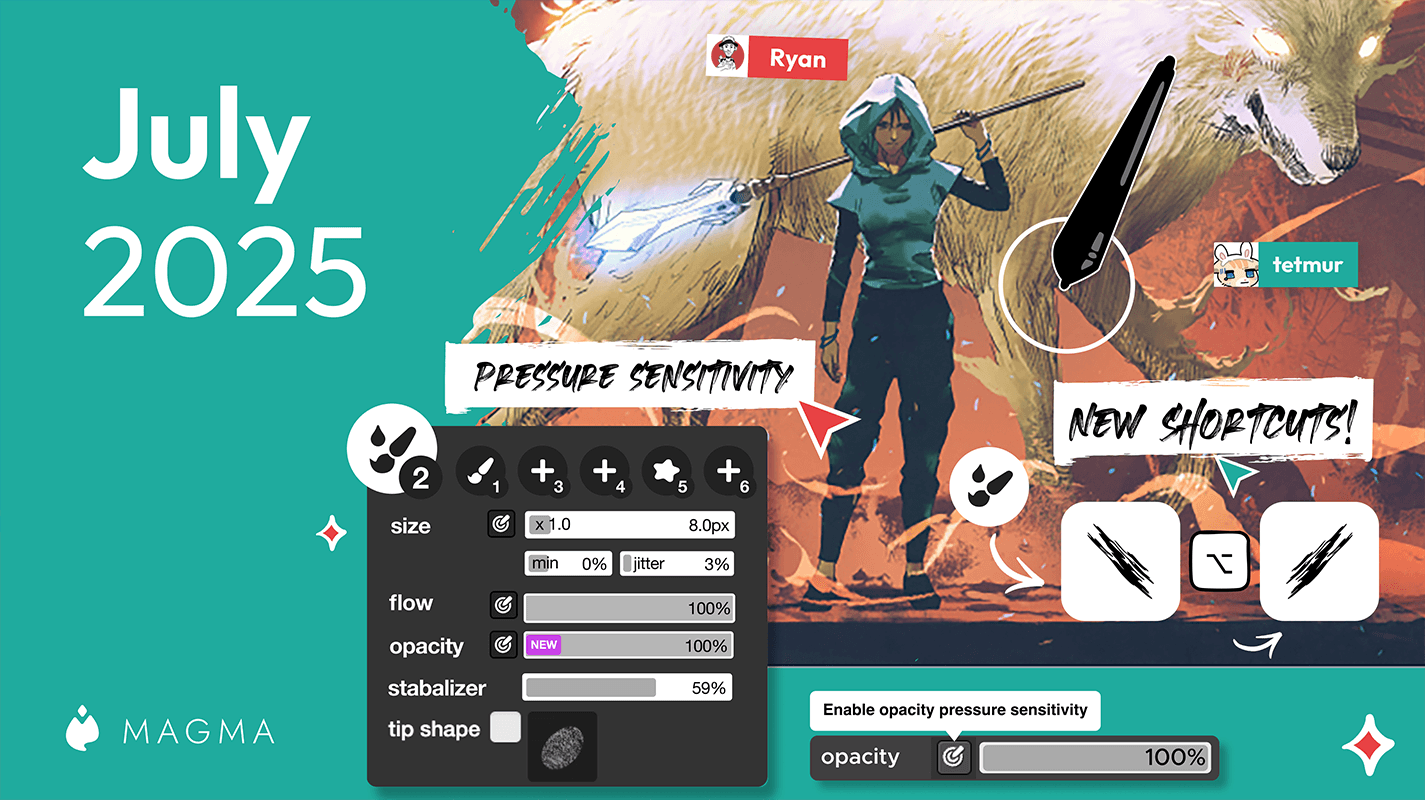
2025年7月24日
アプリ内で使える「Mags」が登場しました。キャンバスでアーティストにMagsを贈って応援したり、絵を依頼したりできます。貯まったMagsは現金に換えられます。
Ryan Allan
·
2025年7月9日
ブラシ・消しゴム・ペンの不透明度を、筆圧で変えられるようになりました。色をリセットしたり、ブラシの角度を回転したりする新しいショートカットも紹介します。

Ryan Allan
·
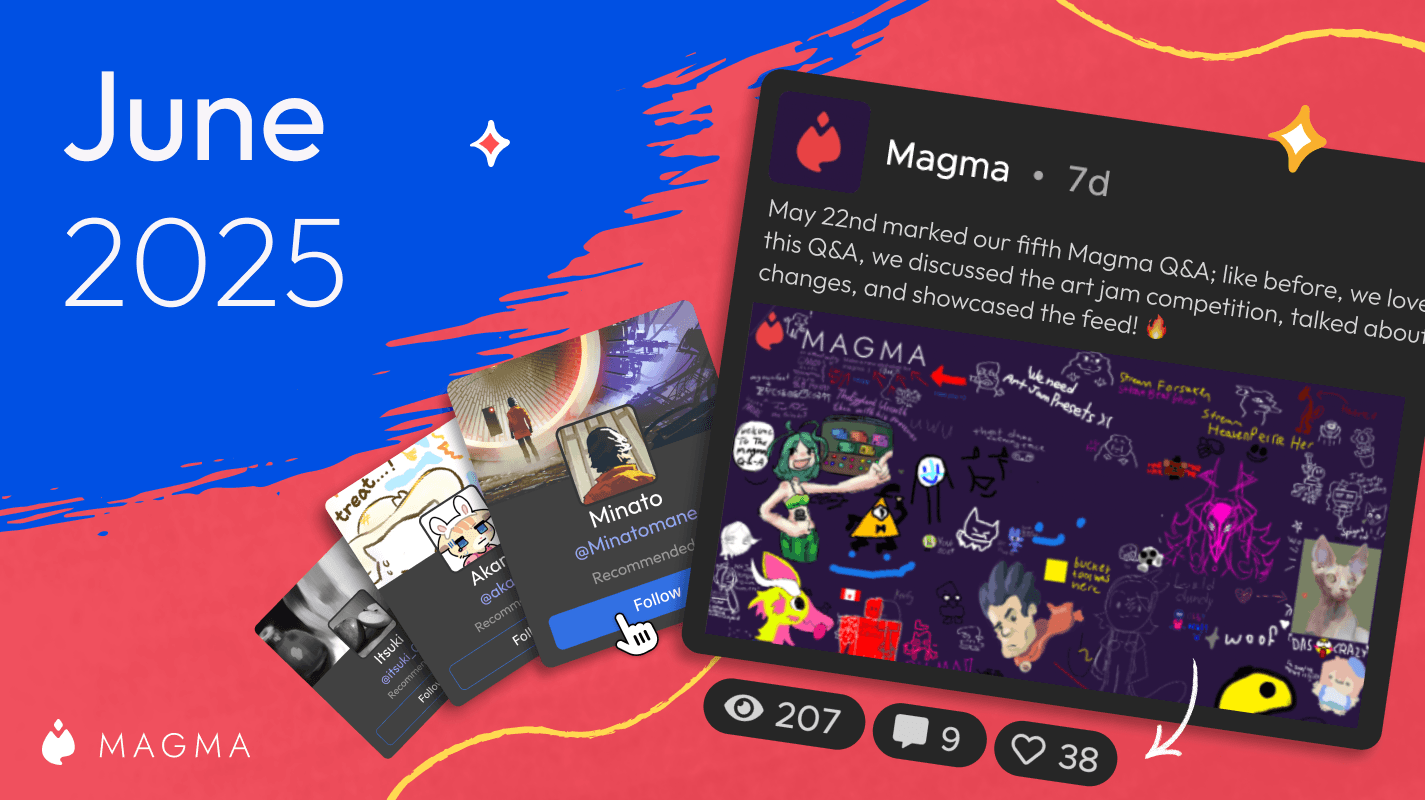
2025年6月24日
Magmaをスペイン語で使えるようになりました。チャット履歴も保存されるようになり、ページを再読み込みしても以前のメッセージが消えません。
Ryan Allan
·
2025年6月13日
フォローしているアーティストの新作やイベント、近況をまとめて見られる「フィード」を、すべてのユーザーに公開しました。「フォロー」と「発見」のタブも紹介します。

Ryan Allan
·
2025年4月30日
第1回ユーザーギャラリーコンテストの結果を発表します。1位から3位までの受賞者と、惜しくも入賞を逃した注目の作品を紹介します。
Ryan Allan
·
2025年4月17日
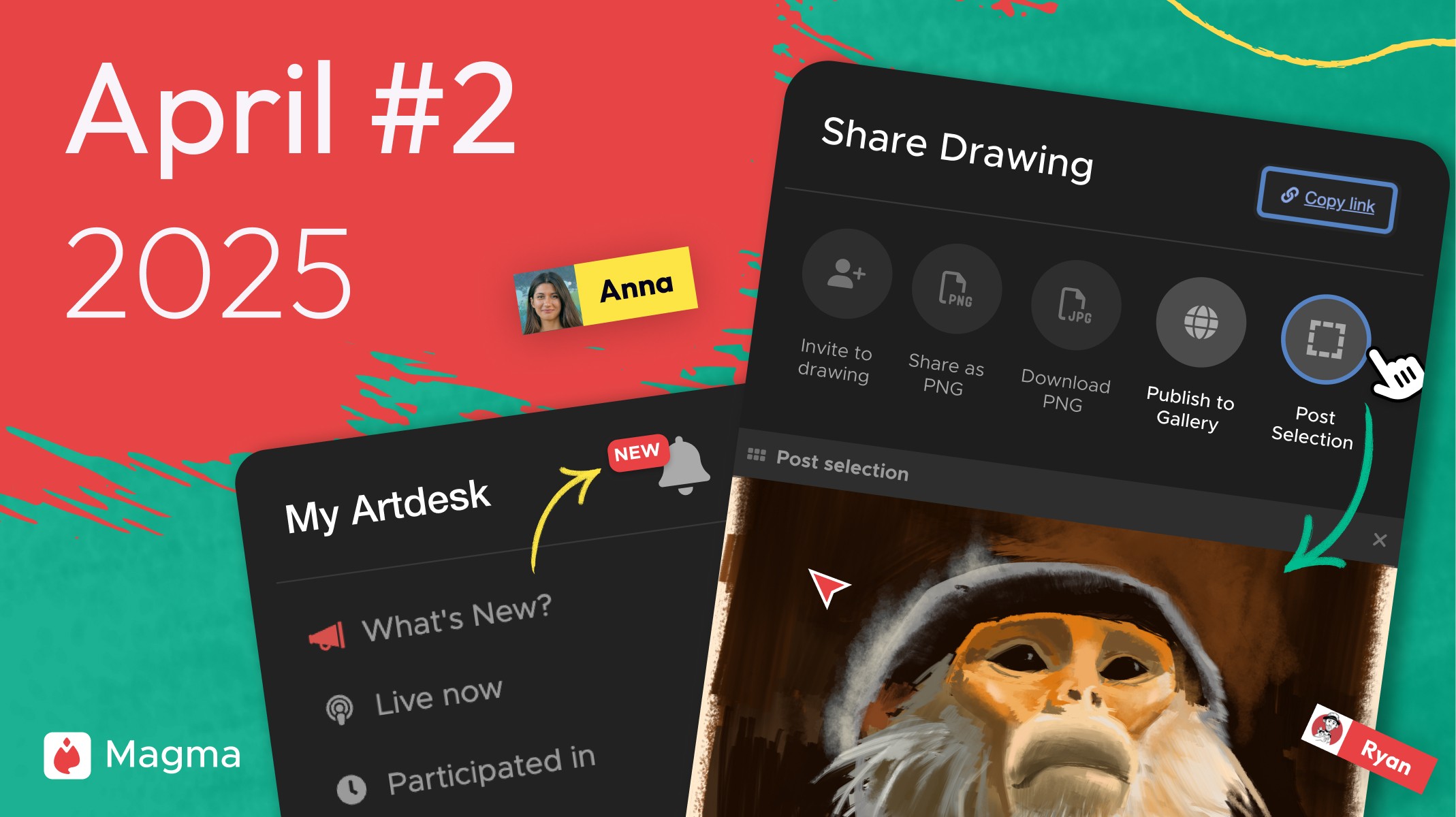
キャンバスの一部を選んで、そのままギャラリーに投稿できるようになりました。通知の見直しや、アートジャムのライブ一覧の高速化も紹介します。

Ryan Allan
·
2025年4月14日
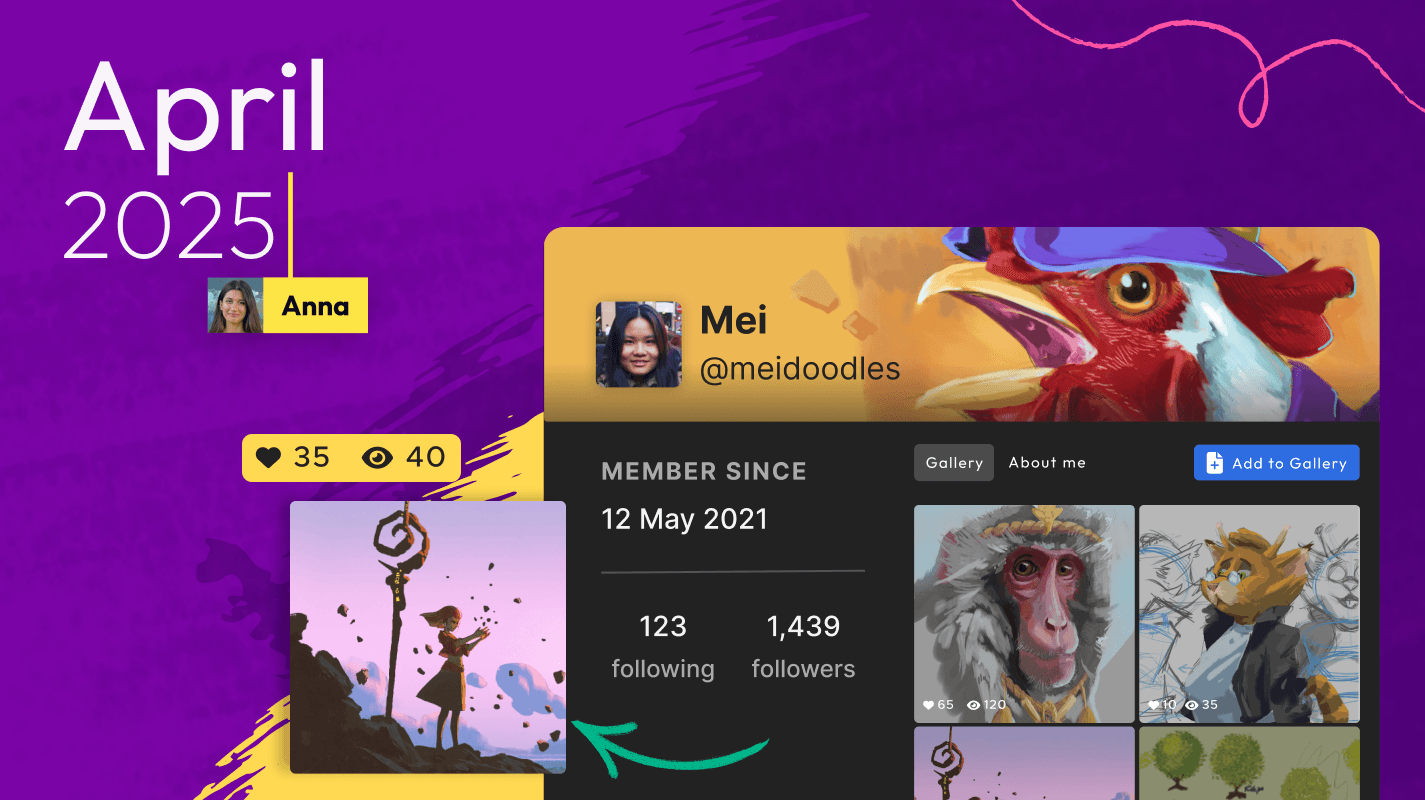
ユーザーギャラリー機能の公開を記念して、賞金総額170ドルのコンテストを開催します。締め切り、賞金、応募資格、応募方法とルールをまとめました。
Ryan Allan
·
2025年4月9日
すべてのユーザーのプロフィールにギャラリーを追加しました。プロフィールページやキャンバスの共有ボタンから、作品をギャラリーに投稿できます。
Ryan Allan
·
2025年3月13日
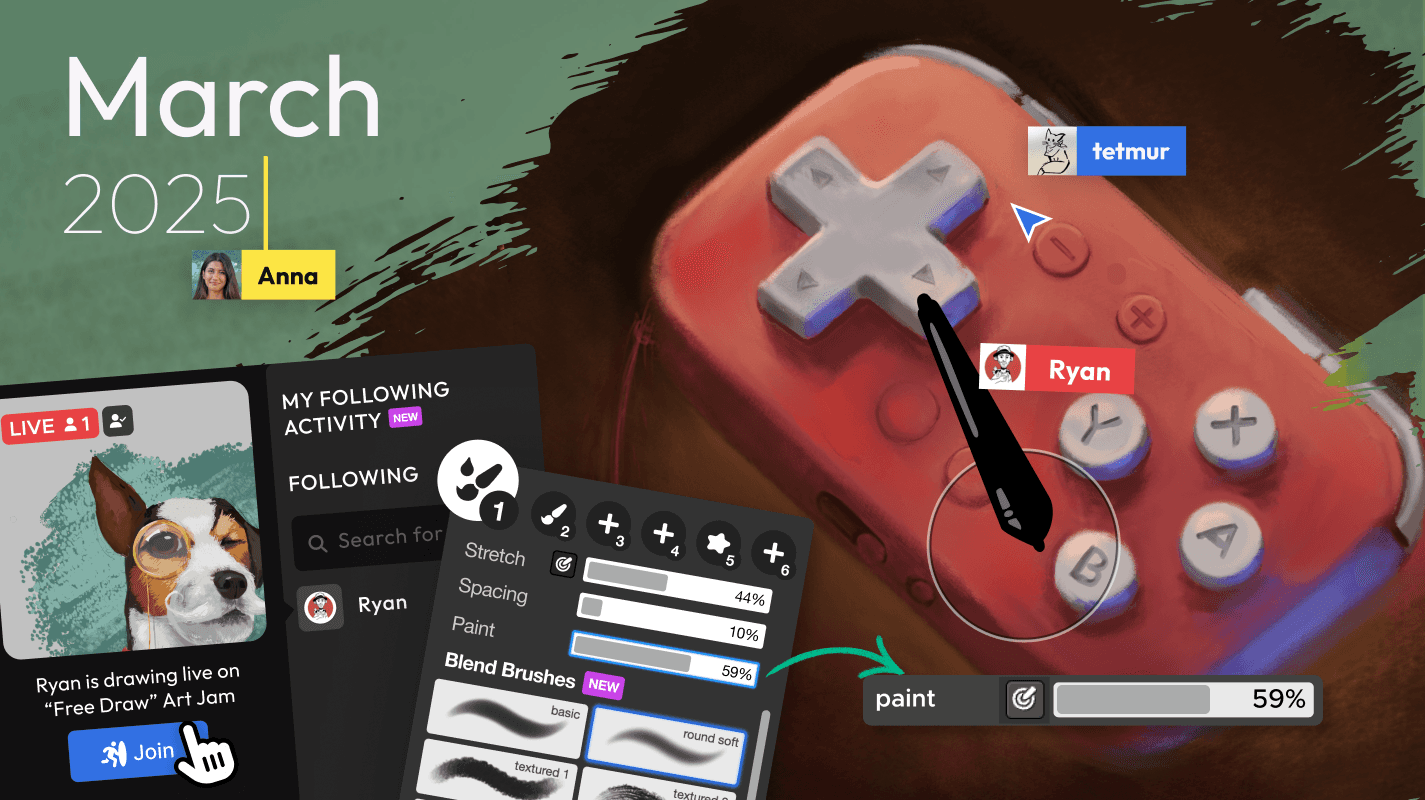
色混ぜツールで、ストロークに色を加えられる設定をすべてのユーザーに開放しました。フォロー中のユーザーのキャンバスに参加しやすくなったほか、シーケンスパネルの権限も追加しています。

Ryan Allan
·
2025年2月18日
無料のSparkプランで資料画面が使えるようになり、通話の参加人数の上限もなくなりました。テキストツールには中国語フォントを追加しています。
Ryan Allan
·
2025年2月13日
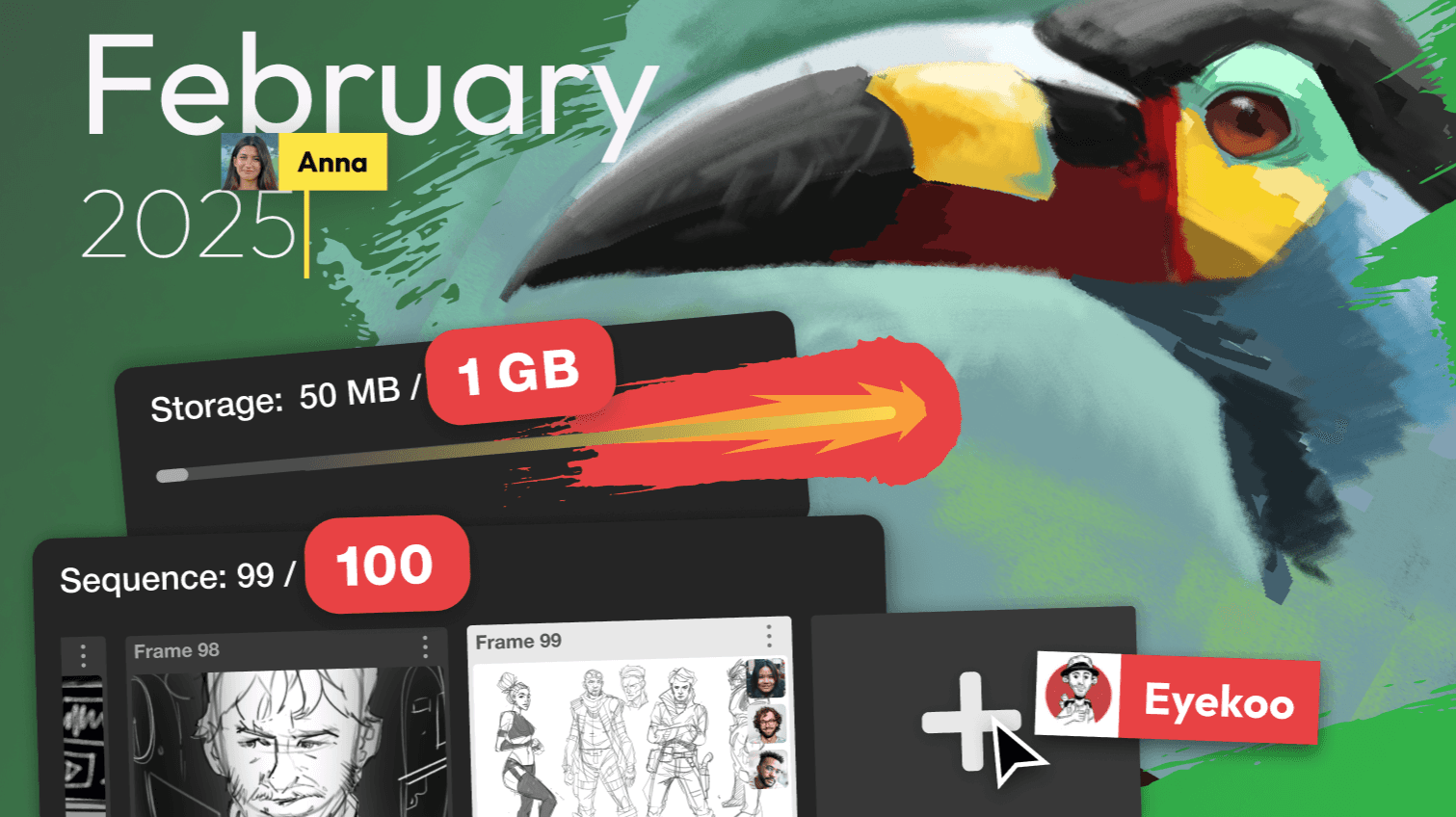
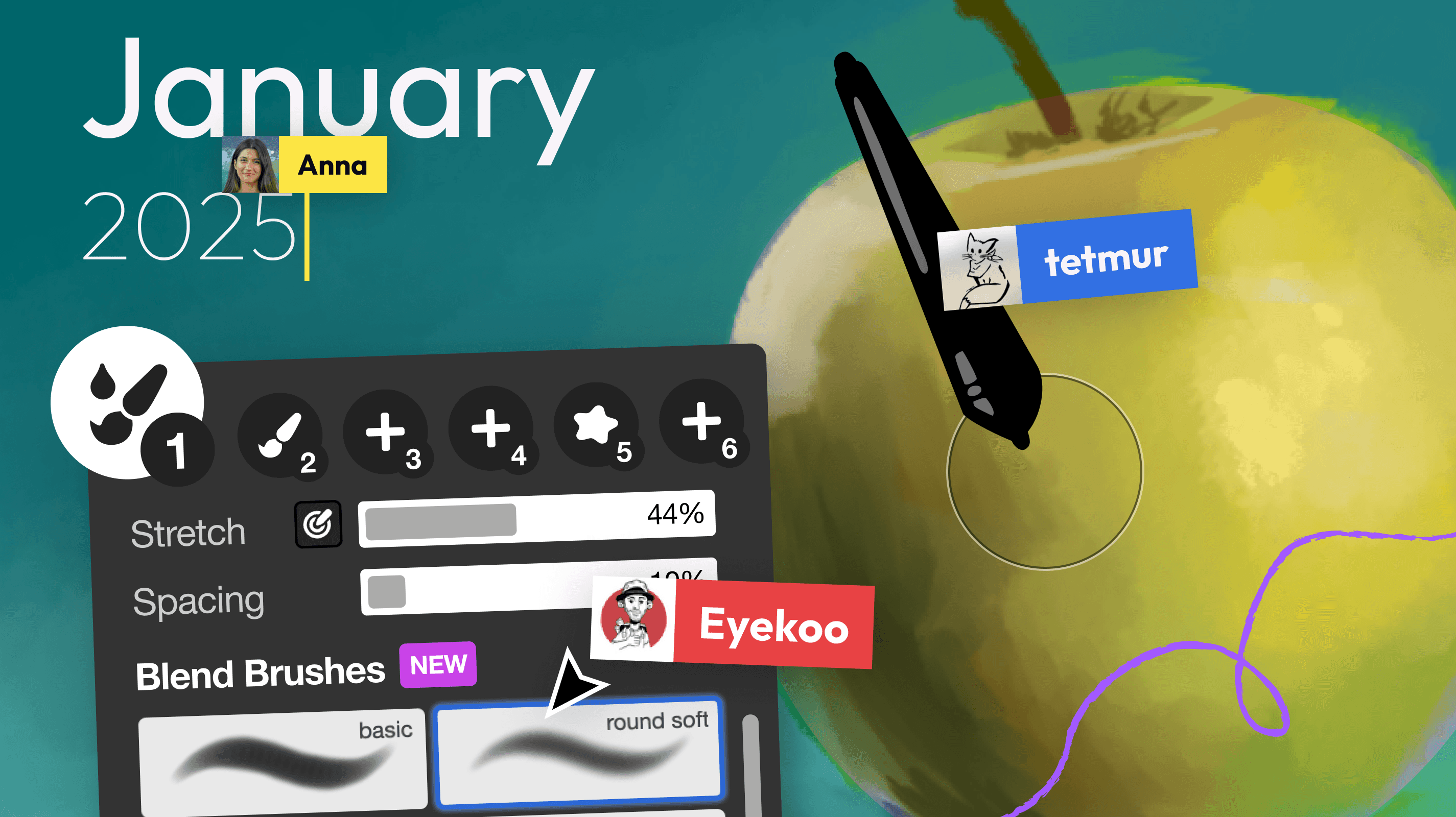
無料のSparkプランの保存容量が100MBから1GBに、シーケンスのパネル数が4から100に増えました。広告の導入や、共有・招待ボタンの変更も紹介します。
Ryan Allan
·
2025年1月15日
Magmaに色混ぜツールが登場しました。コミュニティからいちばん要望の多かった機能です。なめらかなグラデーションや質感のある混色に使える、色延び・追加色の設定とプリセットを紹介します。

Ryan Allan
·
2024年11月25日
待望の公開プロフィールが登場し、友達をフォローできるようになりました。ユーザー名、キャンバスサイズのプリセット、Xでのログインなども紹介します。

Anya Kondratyeva
·
2024年10月11日
招待ボタンから、最近一緒に描いた8人をすぐに招待できるようになりました。公開プロフィールに向けたユーザー名の予約や、リアルタイムに更新されるアートジャムのサムネイルも紹介します。
·
Sep 13, 2024
アートジャムの利用規約を更新し、優れたアートジャムをSNSなどで紹介しやすくしました。変更の内容と、アートジャムに参加する人への影響を説明します。

Anya Kondratyeva
·
2024年9月13日
Magmaを韓国語で使えるようになりました。アートジャムが保存容量に含まれなくなったほか、アートジャムの利用規約の変更や、読み込みの高速化も紹介します。

·
2024年8月16日
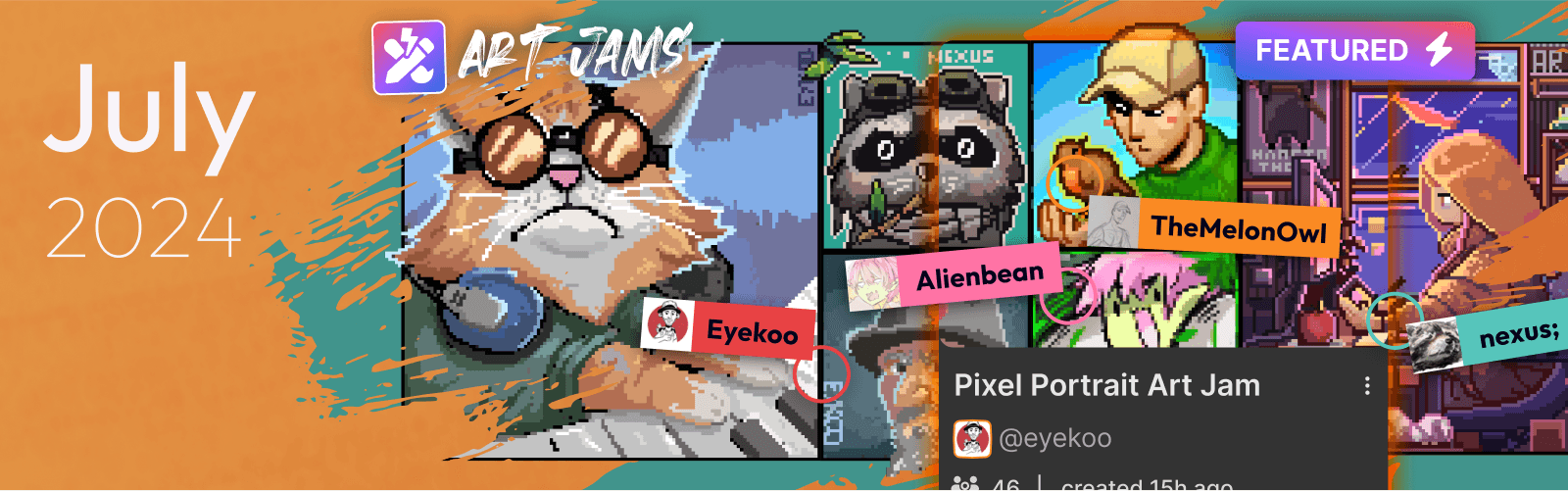
筆圧に対応するブラシの設定がわかりやすくなり、資料画面から元のキャンバスを開いて更新できるようになりました。日本語フォントの表示やセキュリティの改善も紹介します。
Ryan Allan
·
2024年7月12日
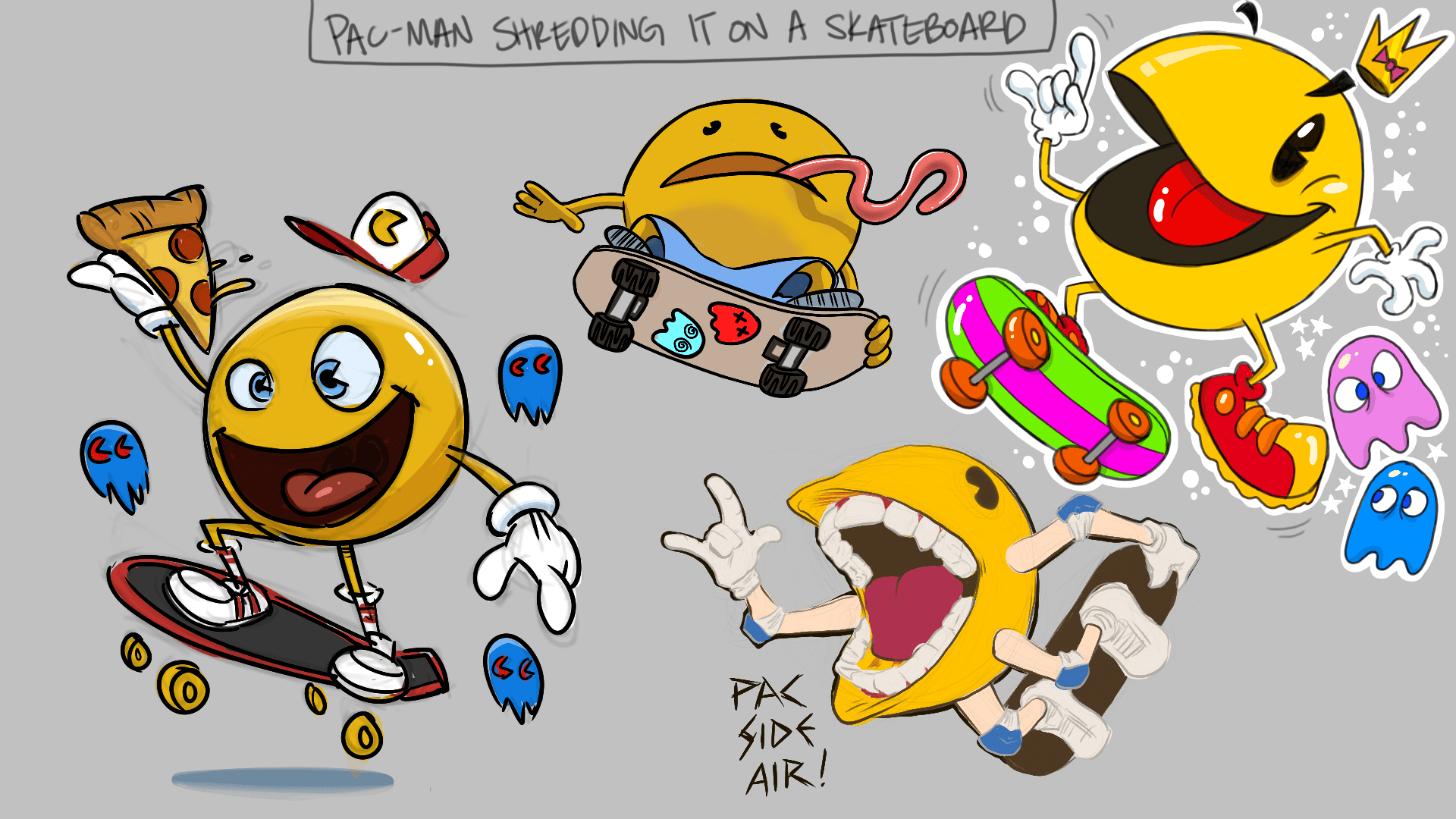
アートジャムがもっと使いやすくなりました。「注目」バッジやセキュリティ対策など、コミュニティの声をもとにした改善と、バグ修正を紹介します。
Anya Kondratyeva
·
2024年6月18日
ラスベガスのアーティストが集まるポッドキャスト、Art Pizzaにインタビュー。Magmaで視聴者と一緒に描く配信の魅力や、お題の決め方、初心者を応援するコミュニティづくりについて聞きました。
Ryan Allan
·
2024年5月10日
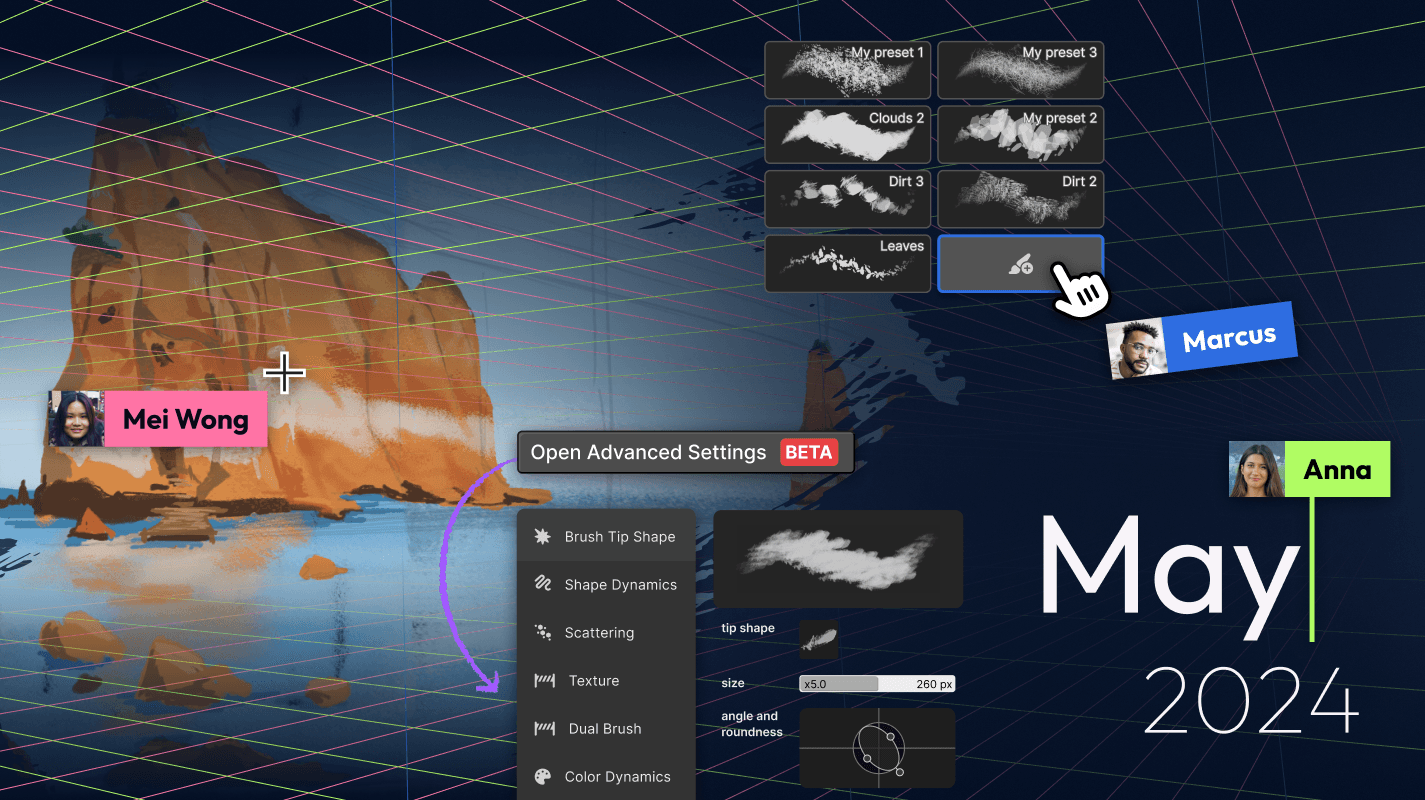
新しいブラシエンジンが登場し、カスタマイズしたブラシを保存できるようになりました。パース定規の表示切り替えや色の変更など、カスタマイズの幅も広がっています。
·
2024年4月5日
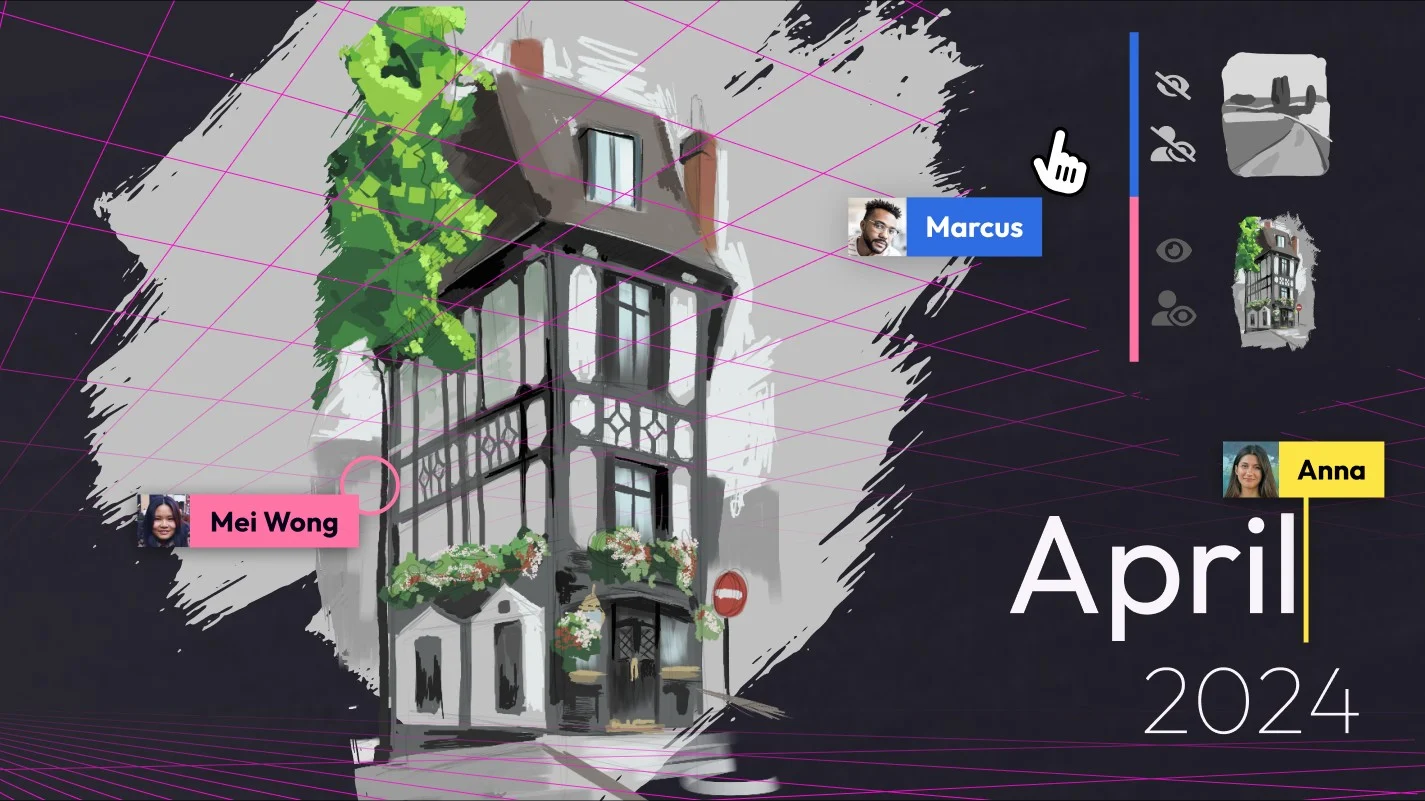
みんなで同じ消失点を使って描けるパース定規(ベータ版)が登場しました。ほかの人に影響せず、自分だけレイヤーの表示を切り替えられる新しい設定も紹介します。
Ryan Allan
·
2024年3月6日
描画設定から、幅と高さを入力してキャンバスのサイズを変えられるようになりました。資料画面の表示を切り替えるショートカット(Ctrl+R)と、新しいブラシエンジンの予告も紹介します。
Ryan Allan
·
2024年2月8日
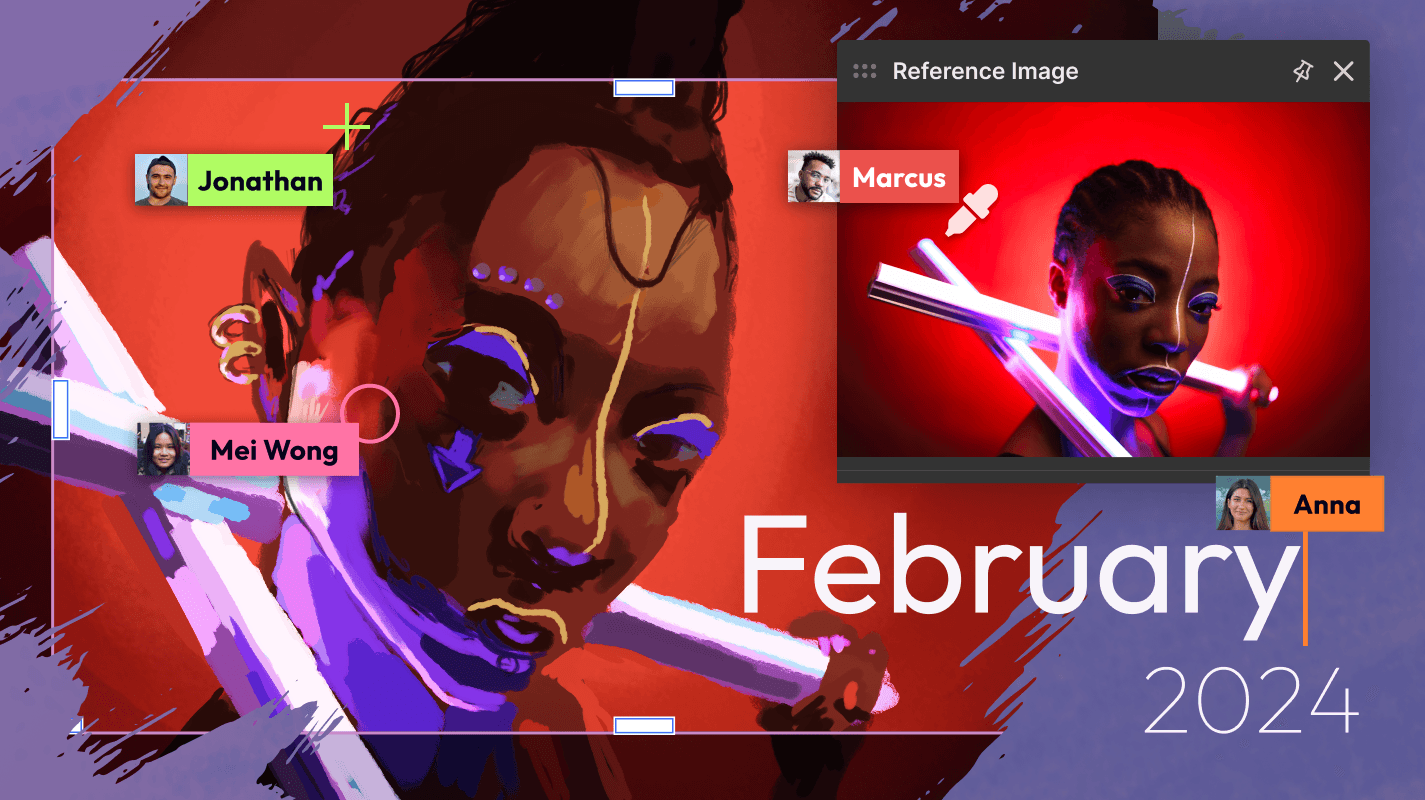
作成したあとでも、キャンバスをトリミングしたり広げたりできるようになりました。キャンバスの上に浮かべて使える資料画面や、モーションブラーも紹介します。
Ryan Allan
·
2024年1月18日
フォルダのグリッド表示、レイヤーのトリミング、ユーザー検索、Blazeの自動購入、ぼかしなど、2023年12月と2024年1月のアップデートをまとめました。
Ryan Allan
·
2023年11月3日
ダッシュボードにダークモードが登場しました。Blaze限定だったブラシをすべてのユーザーに無料で開放したほか、料金プランの見直しや移動ツールの整列機能なども紹介します。
·
2023年10月12日
テキストツールとバージョン履歴が登場しました。Magmaチームのお知らせが届くコミュニティハブや、アートスペースのコンテンツページも紹介します。