(In)finite Canvas on Magma? Here's how...
Jan 15, 2025
·
8 min
Artista y escritor de contenido | Reseñas de tecnología de arte digital | Pinta bajo el nombre Eyekoo | Sueña con puertas torii mientras toma su café matutino
One of our biggest and most complex additions to Magma so far is the Multiboard feature. This unlocks some exciting possibilities, including the ability to create an almost infinite canvas. We think this could be an interesting way to add new depth to your images and storytelling, and we are excited to see what you can do with it. This post will guide you through how to set one up
The Setup
First, create a new Multiboard from your Artdesk or Artspace. The multiboard is essential for this to work, as you'll need the Add Board tool.
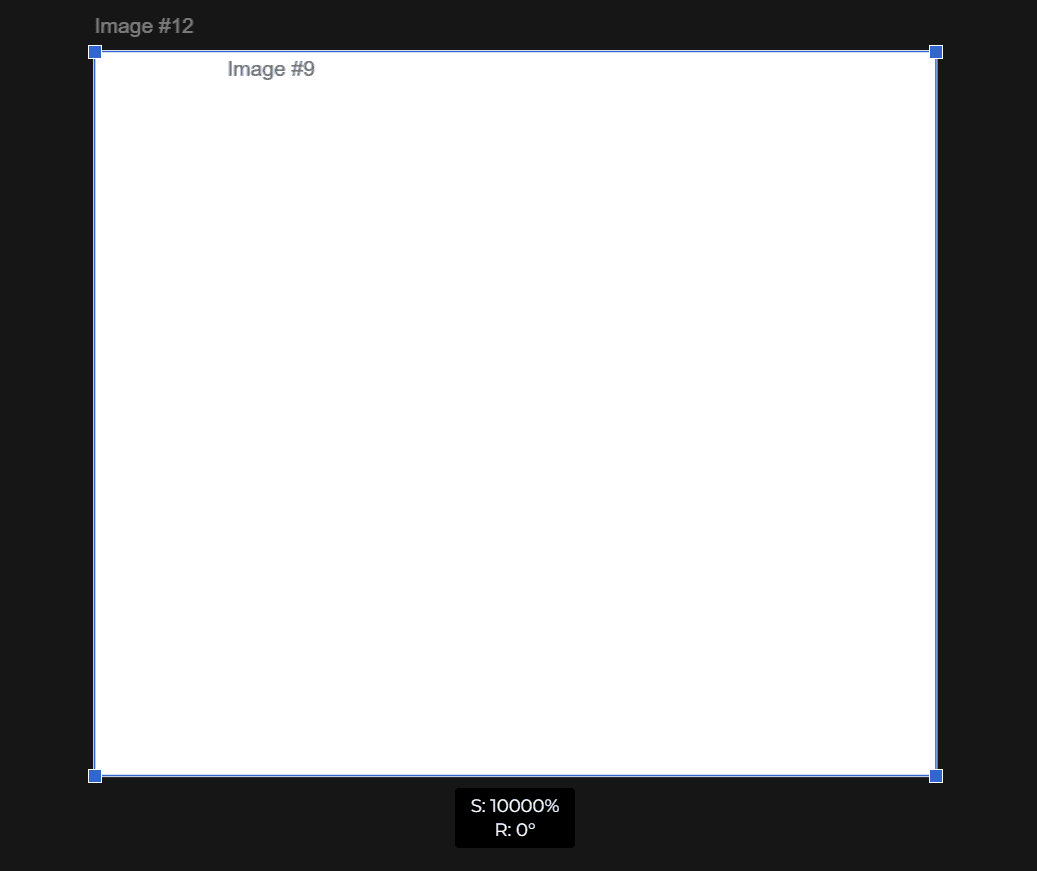
When your editor loads, switch to the move tool, tap on your board, and scale it up to 10000%. This gives you more possibilities to zoom in further.
For more useful info about using the multiboard, check out our guide.
Start your drawing
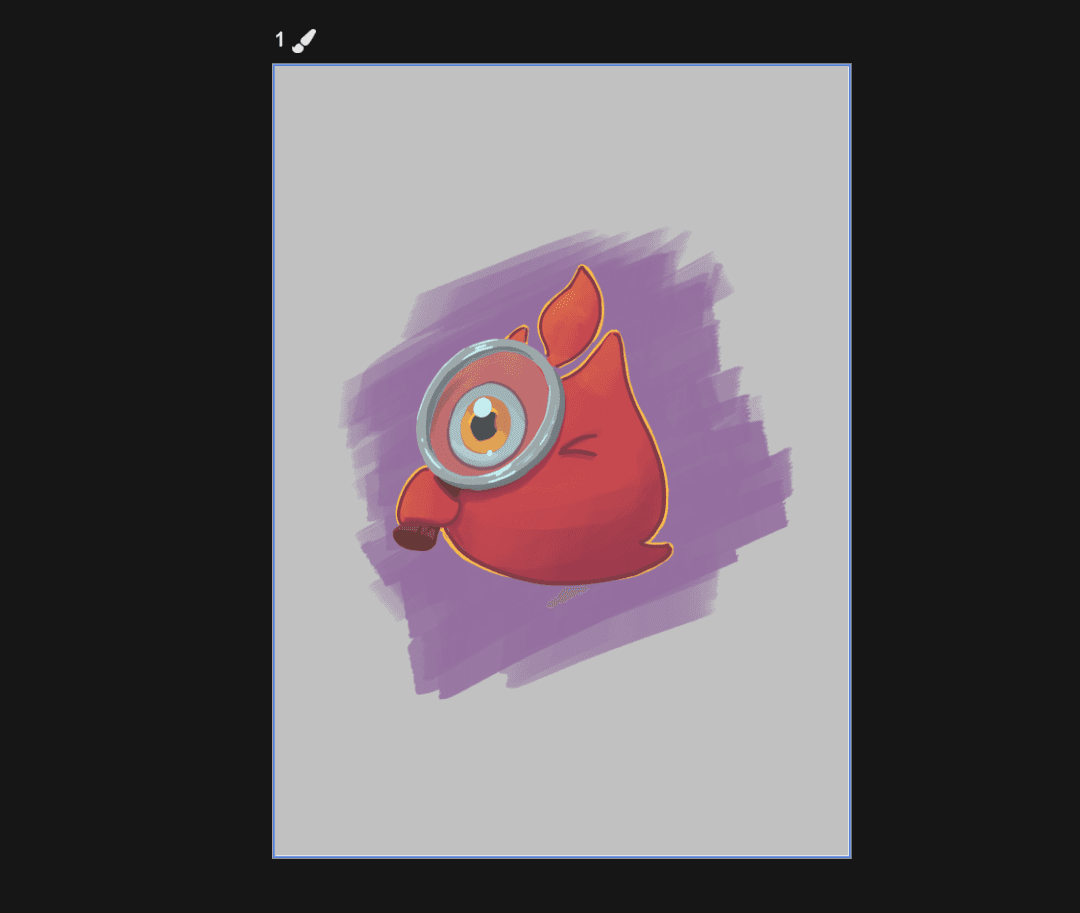
Now you're ready to start drawing. Switch to the brush tool and tap on your board to get started.
This is your main board with your most zoomed-out view. Boards that you add will be placed on top of this to zoom into.
Creating your first zoomed area
You should already know what area of the drawing you want to zoom into. This is where we'll create a new board.
First, create a new board outside of your current one:
zoom out so that your whole canvas is in view;
switch to the add board tool and tap on your drawing once. You should now be in multiboard view and the layers panel looks different;
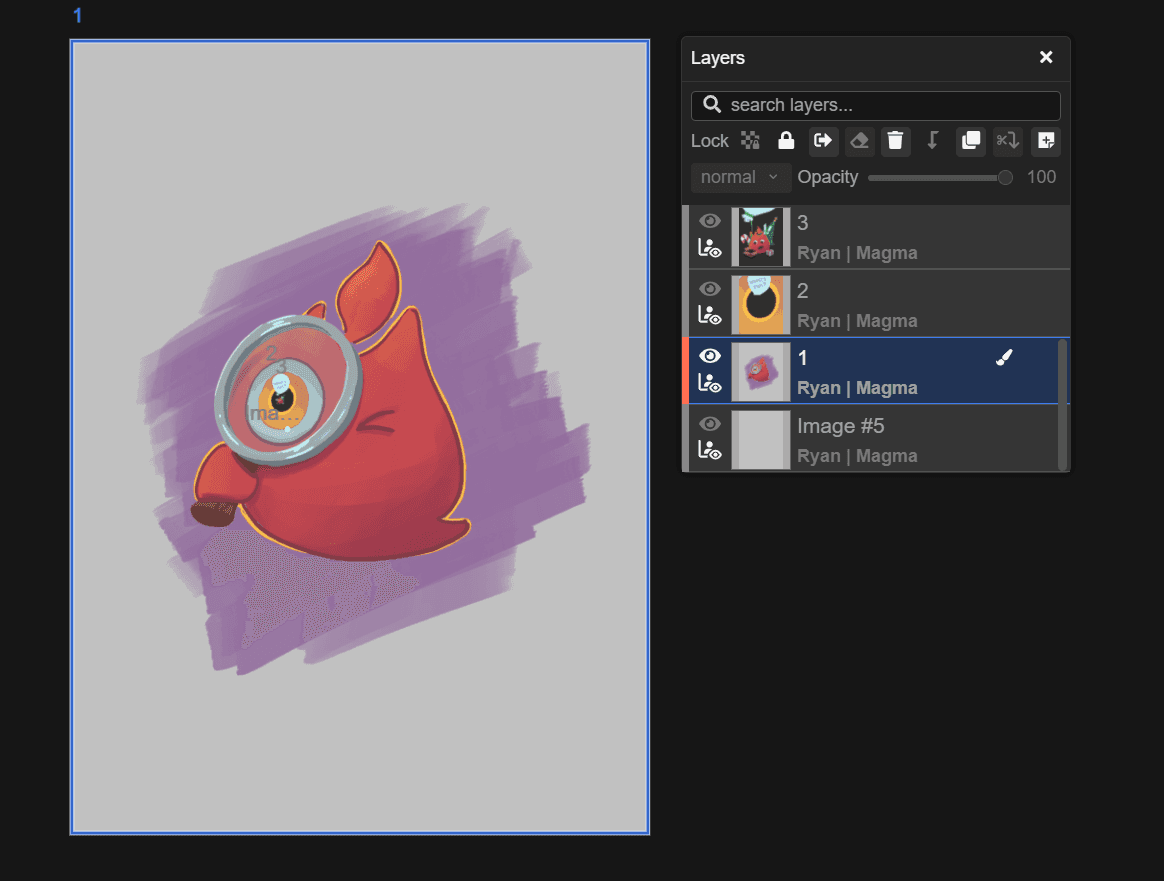
tap on the board in the layers menu and then the duplicate button. This creates a board of the same size and scale.
tap on the new board you created (you will be automatically switched to the move tool) and then click and drag in one of the corners to scale the board down. The resolution remains the same when you scale the canvas.
Place the board over the area that you want to zoom into;
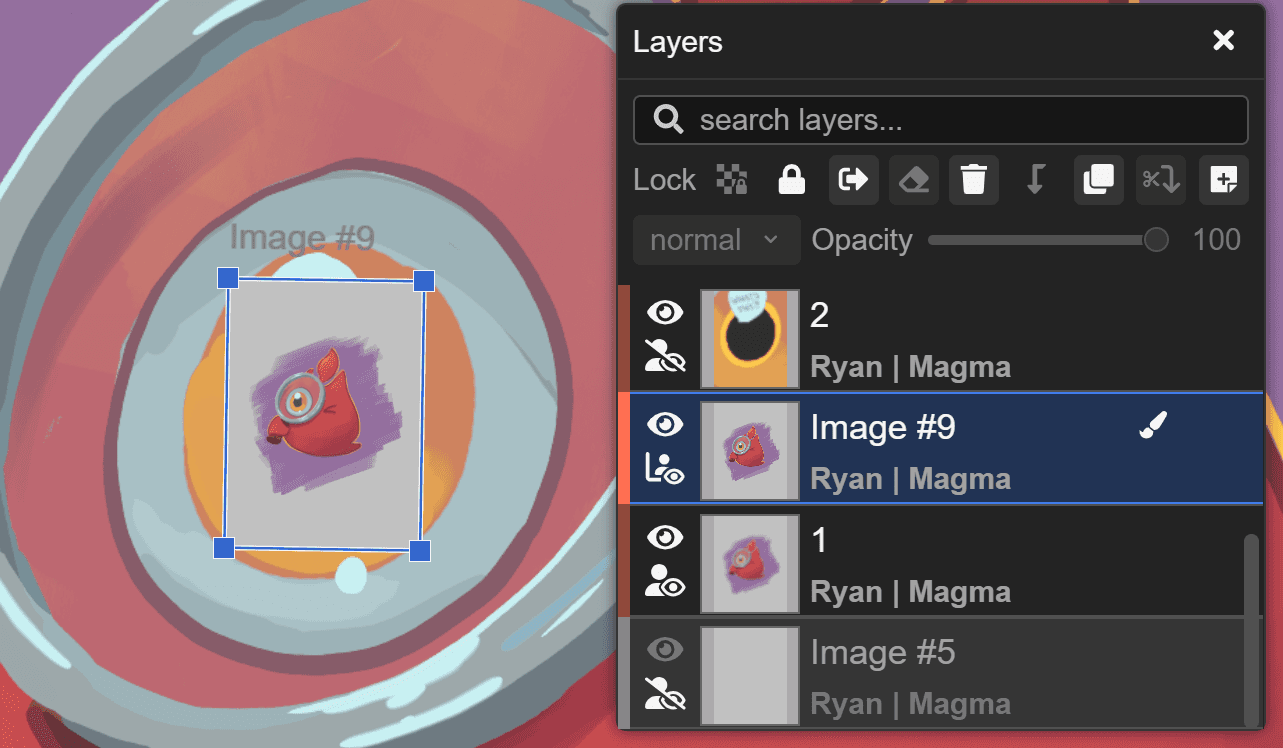
Your next step is to fill in the new board to match the area around and under it. Then it's time to draw the main thing for that board.
You can repeat this several times, adding new boards and scaling them smaller to fit in with each zoomed-in area.
Layer order
Make sure that the boards you will zoom into are ordered correctly; otherwise, they might be difficult to find. Open each one in order, from the back to the front, to ensure they are in the correct sequence.
When you connect to a larger board lower down on the layer list, it will appear in front while all other boards are hidden behind, but the actual layer order has not changed.
Finally
Disconnect from the boards so that your view shifts to multiboard, and reset your viewport so that your whole piece fits your screen. Now you can try zooming in and out. Sometimes it can take a moment for the boards to load up a high-quality preview.
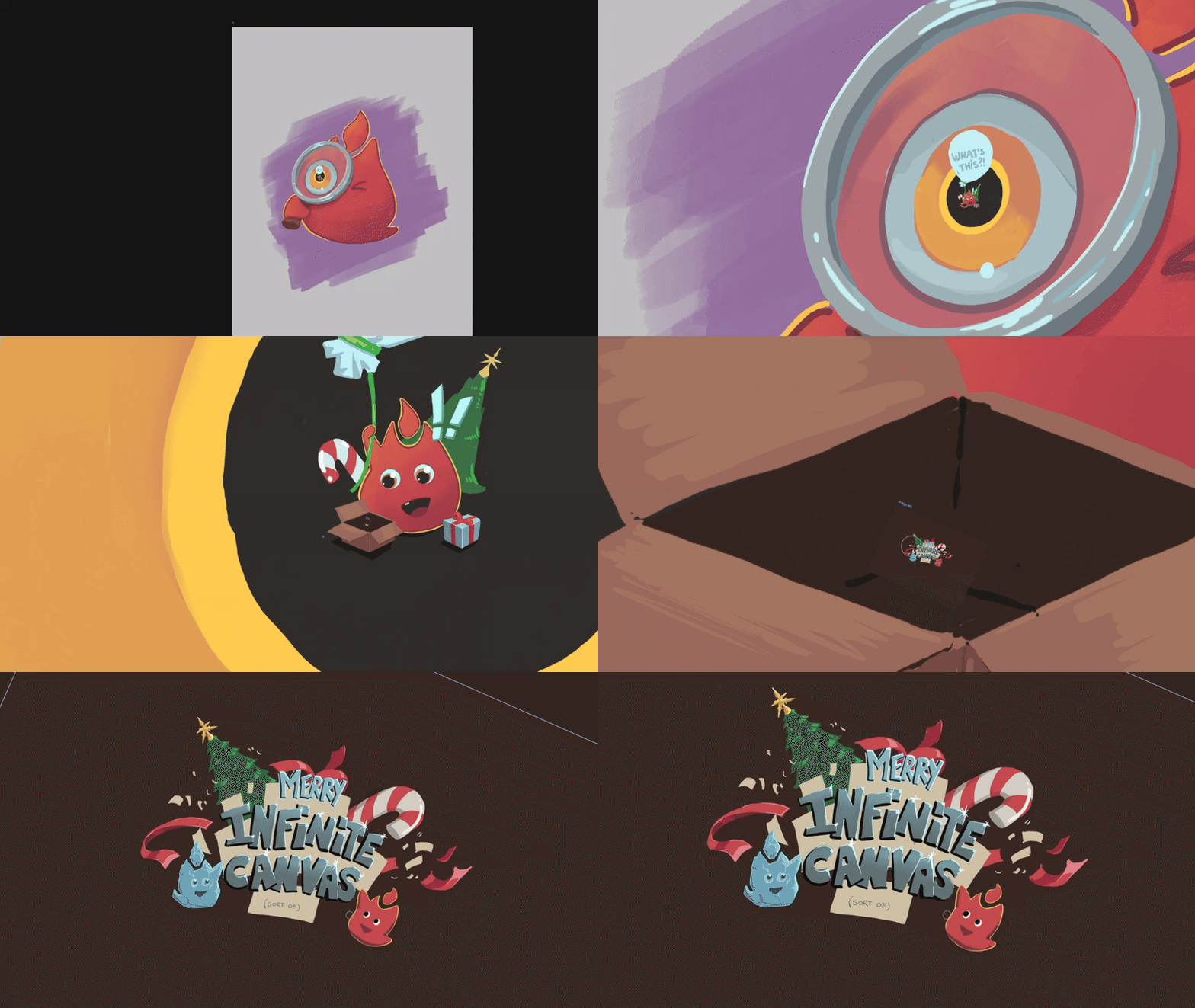
Showing off your Infinite Canvas
The only way to truly show off this kind of creation, is with a video. Capture a screen recording or video above your tablet as you zoom in to show the deeper levels of your drawing. Post it on social media and be sure to tag us!


Artículos relacionados

Ryan Allan
·
September 17, 2026
Check out the latest creator brush packs added to Magma.

Ryan Allan
·
Sept 3, 2026
Read about the new Scheduled Art Jams feature and updated creation flow for Jams.

Ryan Allan
·
June 12, 2026
Stay up-to-date with your art friends by enabling push notifications!
Ryan Allan
·
May 29, 2026
Discover awesome communities with Artspace listing, and use roles to restrict channel access in your space.
Ryan Allan
·
May 7, 2026
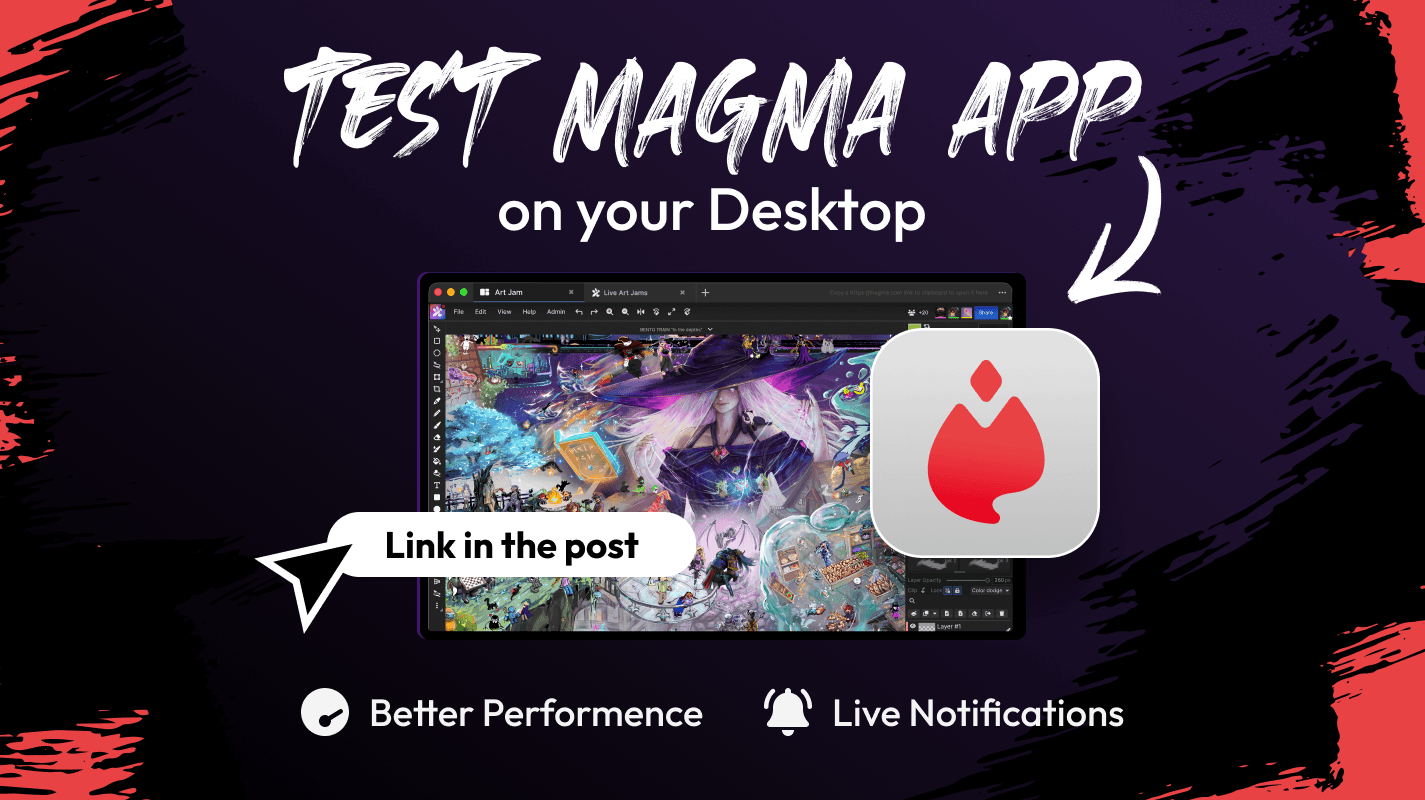
The Magma standalone desktop app is now available for testing.
Ryan Allan
·
May 1, 2026
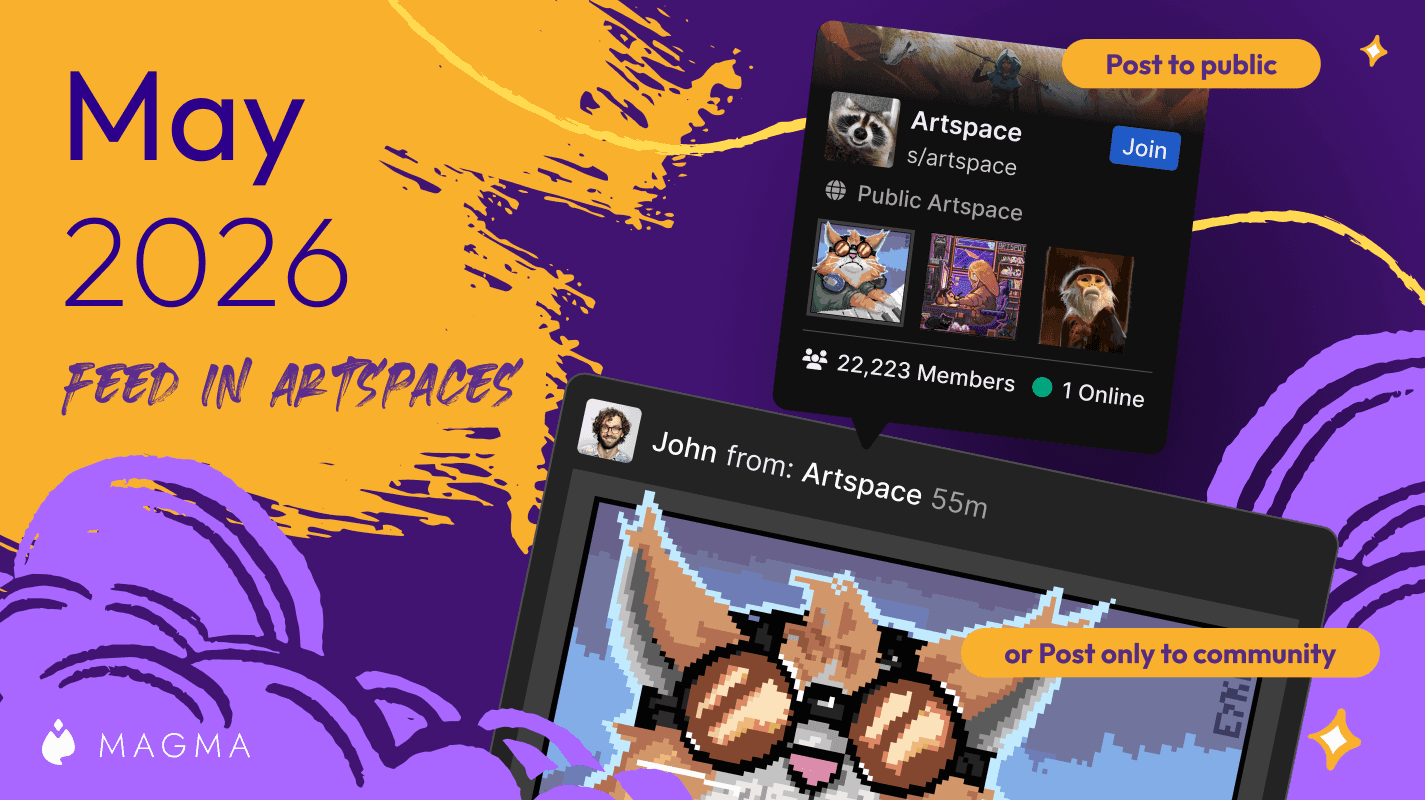
We've upgraded Artspaces even more!
Ryan Allan
·
April 10, 2026
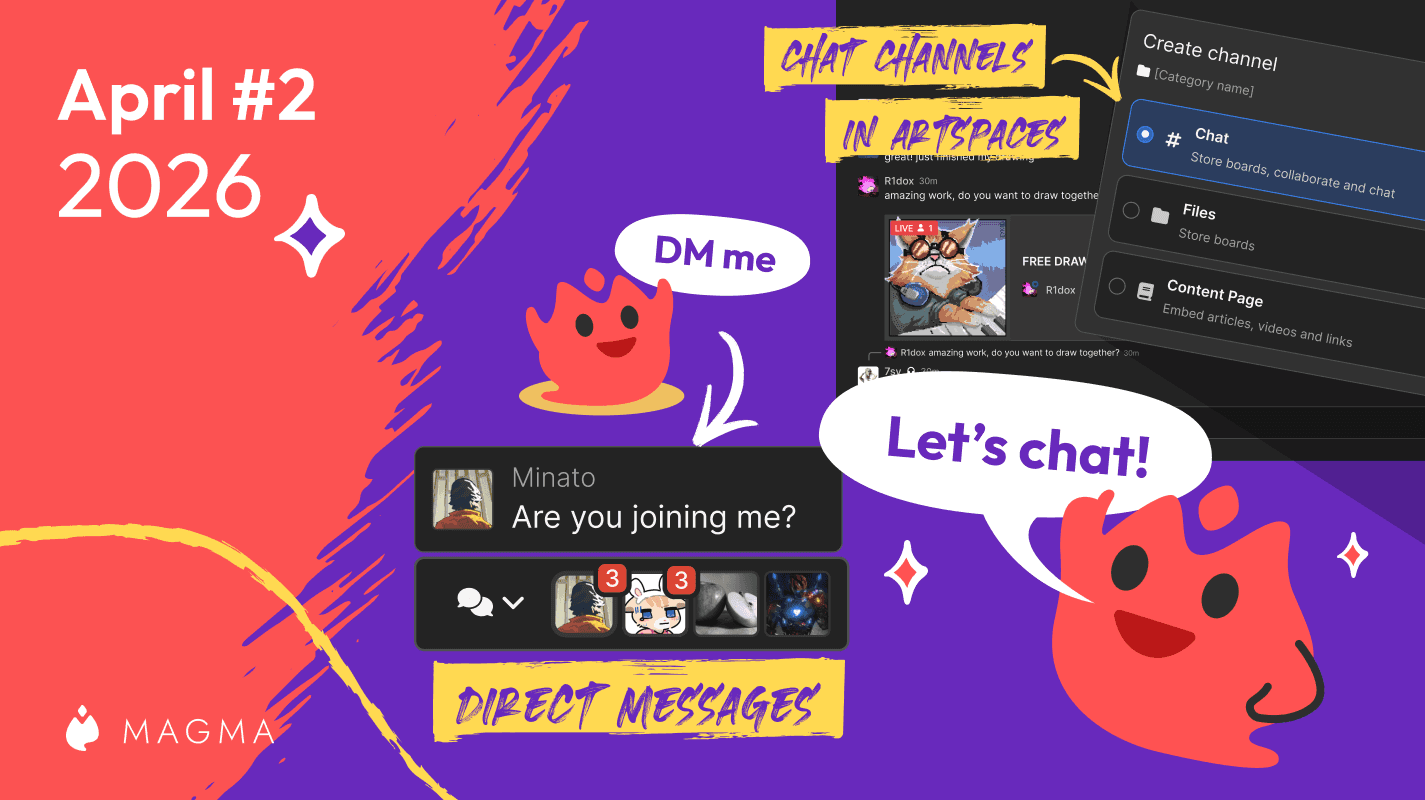
See what's new with Magma's upgraded chat system!
Ryan Allan
·
April 2, 2026
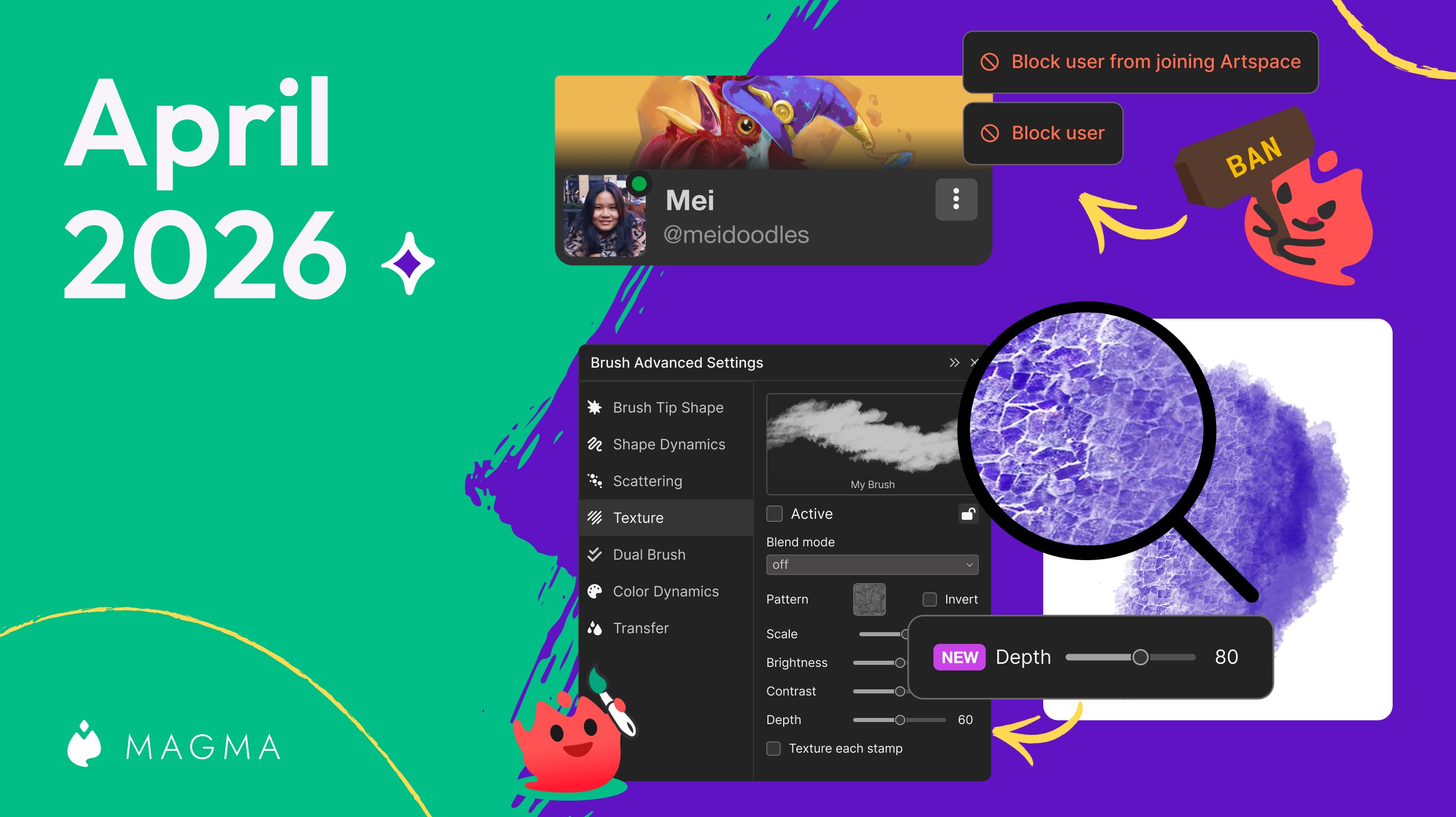
We've improved the blocking system in Magma, and added controls for brush texture depth.
Ryan Allan
·
March 18, 2026
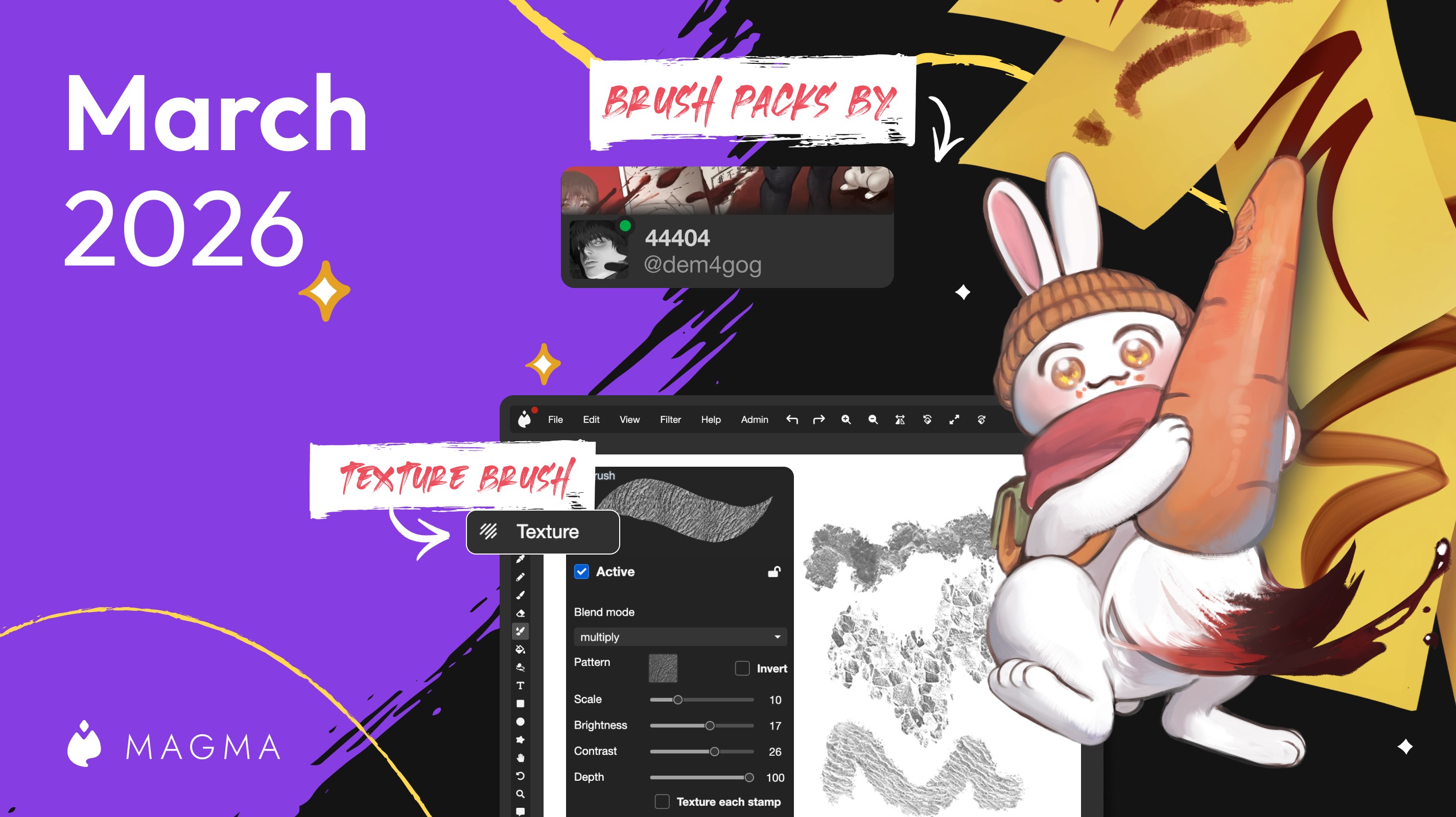
Two new creator brush packs and a whole lot more texture for your brushes.
Ryan Allan
·
February 11, 2026
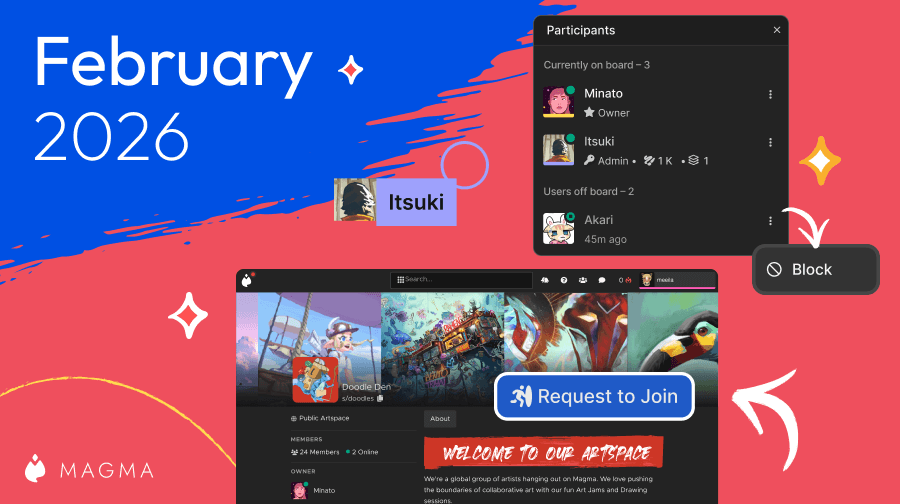
In this update, we bring you some news and improvements to Artspaces as well as a new Participants List
Ryan Allan
·
January 1, 2025
Check out some stats as we look back at 2025, and how to view your own round-up of your activity on Magma
Ryan Allan
·
December 18, 2025
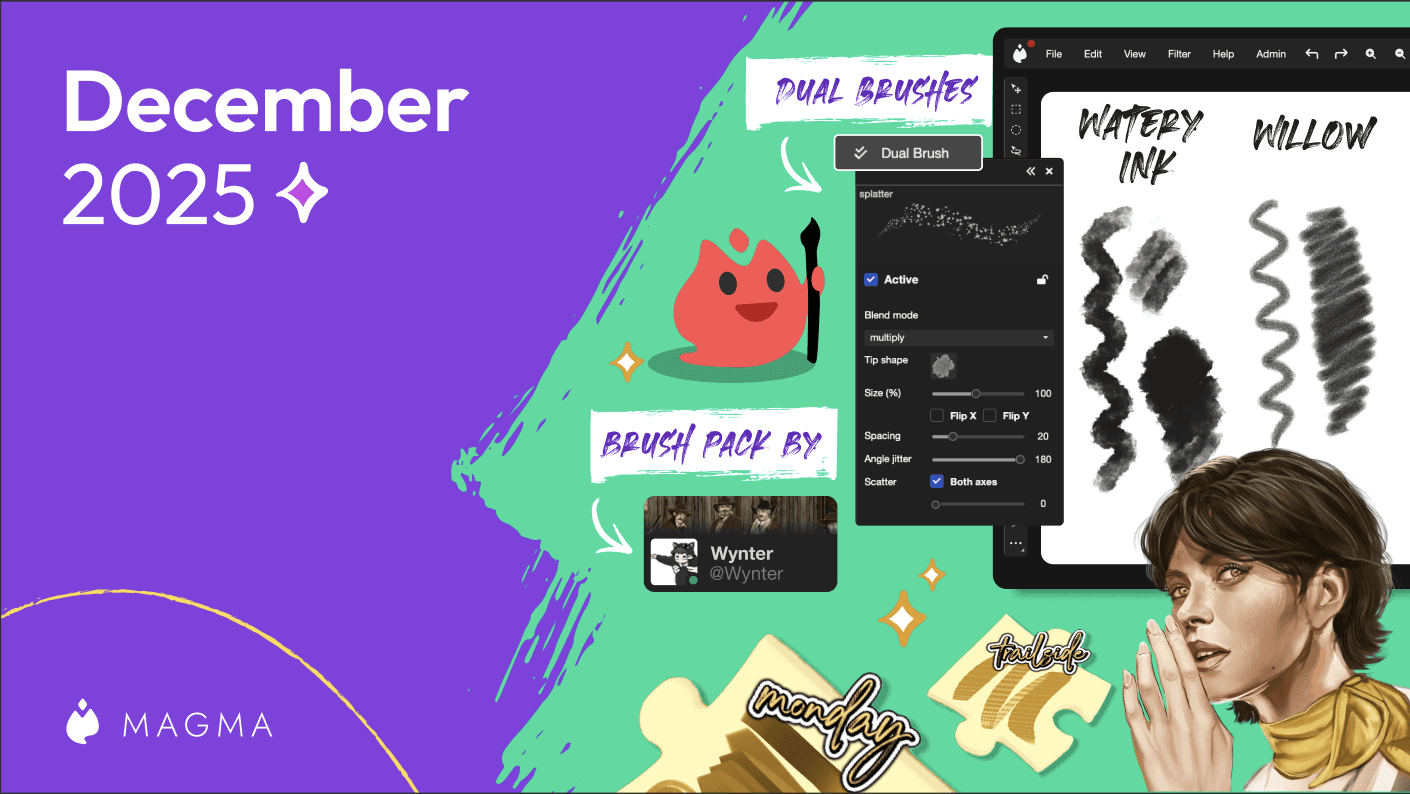
In this update, we bring you some new brushes as well as the Dual Brush setting.
Ryan Allan
·
Jan 15, 2025
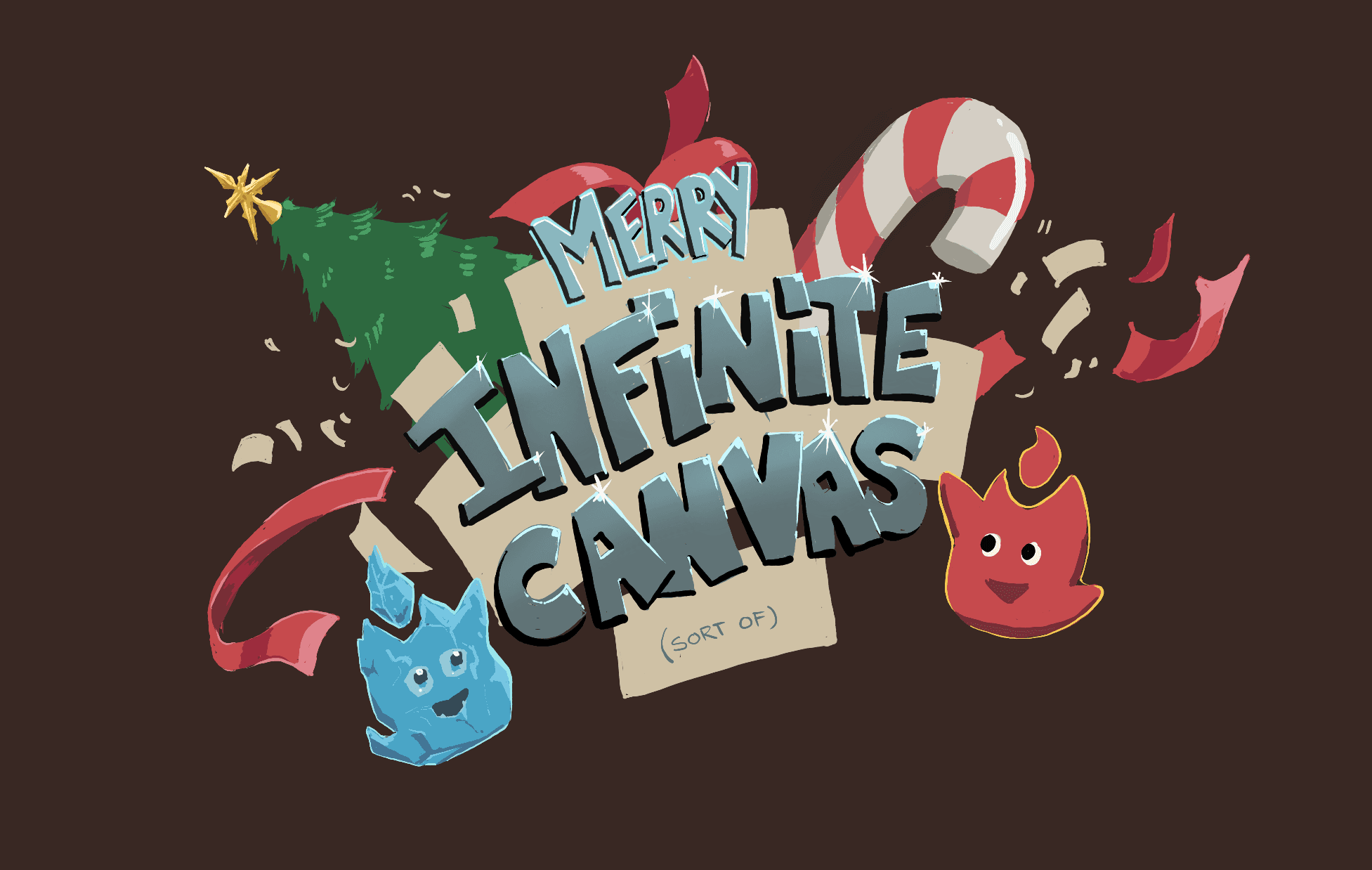
Magma's Multiboard feature unlocks quiute a few possibilities, one of those being a sort of infinite canvas.
Ryan Allan
·
November 28, 2025
We're excited to be partnering with Orb to share a free custom brush pack to use in Magma.
Ryan Allan
·
November 24, 2025
We've got some improvements to Super Simple Mode and Comment threads
Ryan Allan
·
November 13, 2025
We've got some improvements to the new Homepage and Liquify, and Multiboard
Ryan Allan
·
November 6, 2025
To keep Magma's environment safe and healthy for artists, we have updated our Community Guidelines.
Ryan Allan
·
October 25, 2025
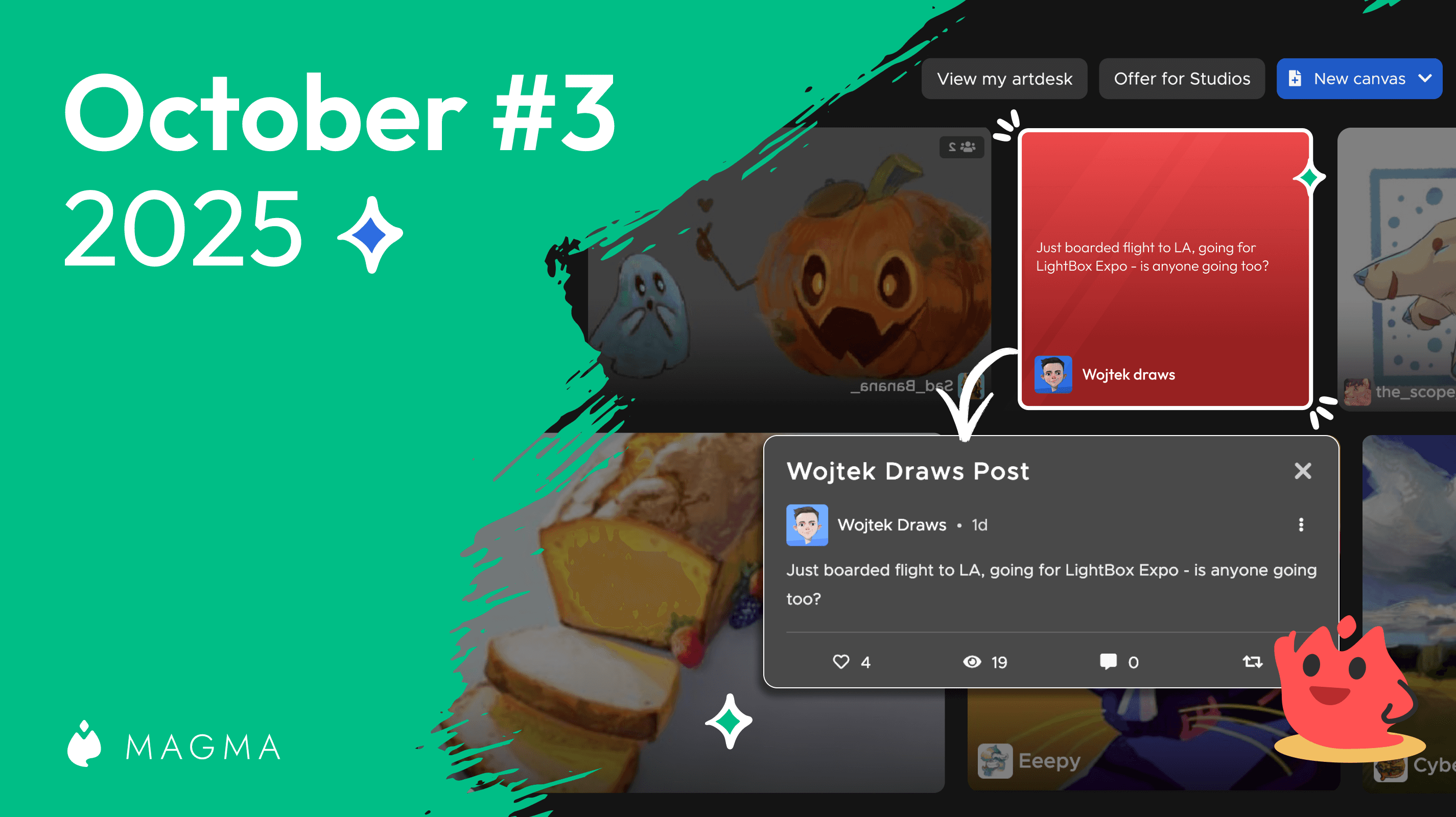
We've got some improvements to the new Homepage and Liquify, and Multiboard
Ryan Allan
·
October 9, 2025
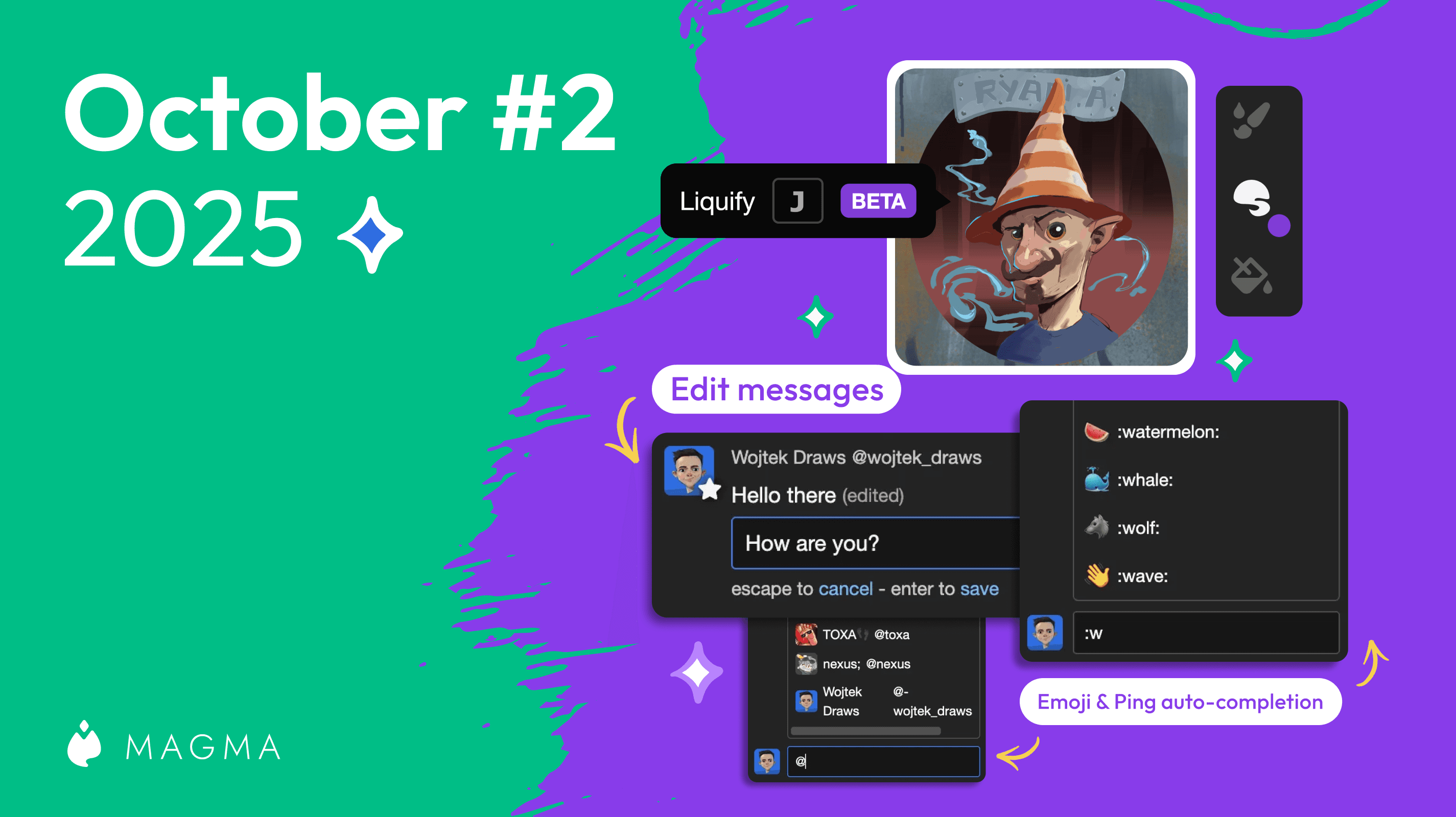
Make adjustments to proportions and posing with the new Liquify tool in Magma.

Magma
·
October 2, 2025
Browsing multiboards just got easier, plus new fonts and brush panel controls
Ryan Allan
·
September 25, 2025
We're leveling up the collaboration possibilities with a new Remixing feature!
Ryan Allan
·
September 4, 2025
Introducing our new homepage where you can discover awesome art from Magma users across the globe.
Ryan Allan
·
September 2, 2025
Introducing an update to the Magma UI as well as our much anticipated Multiboard feature
Ryan Allan
·
August 19, 2025
Check out what's new in Magma including a customizable pressure sensitivity curve and the ability to add an entrance fee for Art Jams

Ryan Allan
·
August 6, 2025
Introducing a new project at Magma to support our artists, one Mag at a time.

Magma
·
16 de agosto de 2024
Esta versión trae mejoras en la interfaz de usuario para Brushes y Layers, mejora la funcionalidad de la Ventana de Referencia e incluye importantes actualizaciones de seguridad y otras correcciones.
Ryan Allan
·
12 de julio de 2024
¡Esta actualización ofrece algunas mejoras para la experiencia de Art Jams, además de un par de correcciones útiles de errores!
Anya Kondratyeva
·
18 de junio de 2024
Lee nuestra conversación con el equipo detrás de Art Pizza Podcast, un colectivo de artistas que organiza eventos encantadores de dibujo en Magma.

Anya Kondratyeva
·
20 de junio de 2024
Para ver las reglas y mejores prácticas, consulta nuestro blog sobre cómo colaborar con otros en un lienzo.