A free drawing app for your Chromebook
Magma runs in Chrome, so there's nothing to install and no Android app to set up. Open a canvas, draw with a stylus, a pen tablet or your touchpad, and invite friends or classmates to draw on it with you.
 Magma
Magma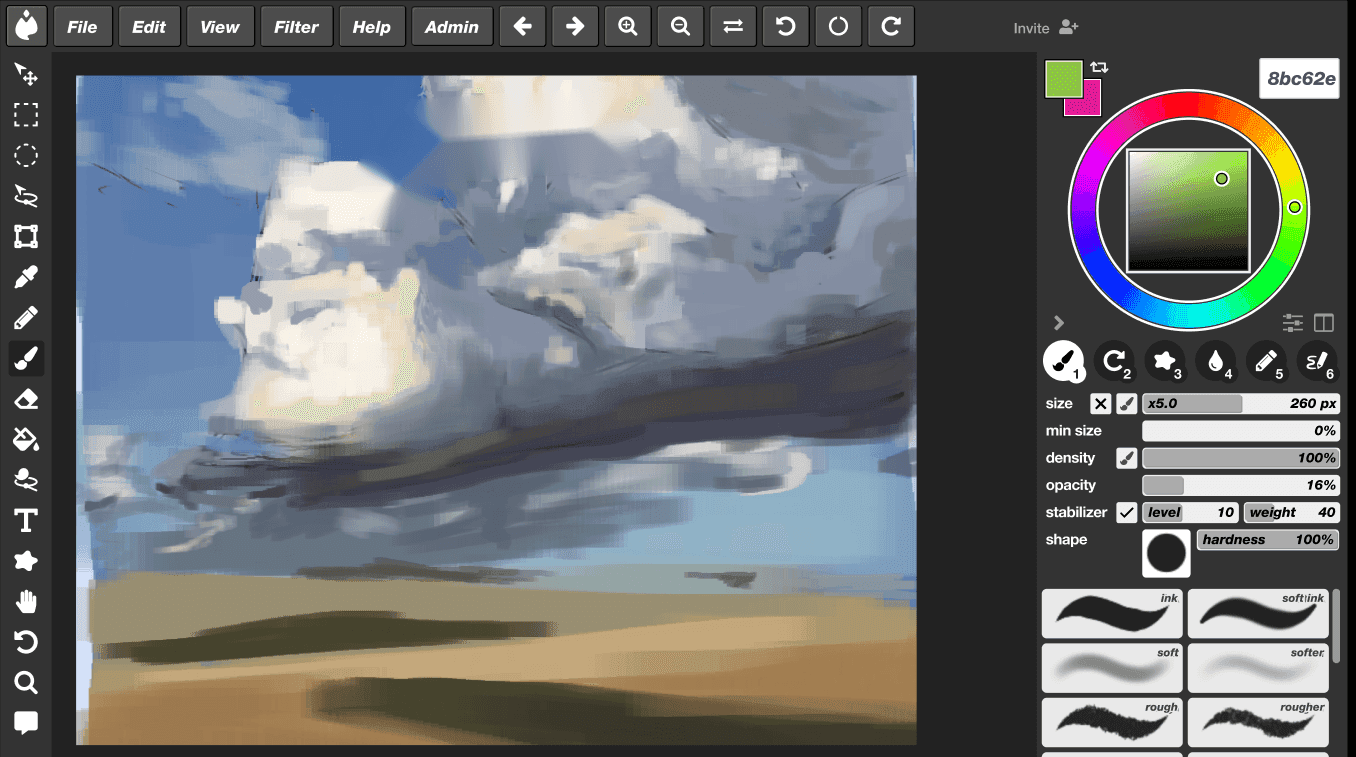


 Maya
Maya
Why draw in the browser on a Chromebook
- Nothing to install. Magma works on Chromebooks where you can't add apps, as long as magma.com isn't blocked on your network.
- Your work lives in the cloud and saves as you draw, so a small drive or a shared school Chromebook isn't a problem.
- The same canvas opens on any device: start on the Chromebook at school and keep going on a PC or tablet at home.
- A real painting toolset: layers, paint brushes that blend, a stabilizer, a perspective grid, liquify and layered PSD export.
- You can draw together. Share a link and friends or a whole class can draw on the same canvas, live, with voice and text chat.
Pen pressure on a Chromebook: what to expect
Magma uses the pressure and tilt that Chrome reports from your pen, the same standard browser input every web drawing app relies on. So whether you get pressure depends on your Chromebook, your pen and your ChromeOS version, not on Magma.
Some setups pass pressure through to the browser and some don't. That includes built-in and USI styluses and USB pen tablets: Wacom lists its Intuos and One by Wacom tablets as "Works with Chromebook" certified, for example. We'd rather not promise a specific model, so test your own setup in ten seconds: open a canvas, pick a pressure brush, and draw one light stroke and one firm stroke. If they look different, pressure is working.
No pressure? You can still draw well. Set the brush size by hand, turn up the stabilizer for clean lines, and use opacity for soft shading. Many artists sketch with a touchpad or mouse this way.
How to draw on a Chromebook with Magma
Open Magma in Chrome
Go to magma.com and create a free account. You can sign in with Google, Discord or email.
Start a canvas
Create a new canvas. On a low-power Chromebook, start around 1920 × 1080 px. Very large canvases and heavy blending ask more of the device.
Connect your pen
Use your Chromebook's stylus, or plug in a pen tablet (you may need a USB-C adapter). A touchpad or mouse works too.
Check pressure
Draw a light stroke and a firm stroke with a pressure brush. If they look the same, your pen or Chromebook isn't sending pressure to Chrome. Adjust brush size and opacity by hand instead.
Draw on layers
Keep your sketch, color and shading on separate layers (up to 60 on the free plan) so you can change one without wrecking the others.
Invite others (optional)
Share the canvas link. Friends or classmates open it in their own browser and draw with you live, with voice and text chat.
Save and export
Magma saves as you draw. Export a PNG or JPEG to share, or a layered PSD to open in another app.
Drawing together in class
Chromebooks are what many art classes have, and drawing together is where Magma is different. A teacher shares one link and the class is on the same canvas: a warm-up where everyone adds to one picture, a relay drawing, or a critique where you paint notes right on the work.
For bigger groups, a Multiboard puts many canvases side by side on one infinite board, so every student gets their own canvas and the whole class can still see each other's work. One canvas holds up to 30 artists drawing at once, and a board holds hundreds.
Magma accounts are for people aged 13 and over. For school and district plans (Fusion for Education), contact us through the pricing page.
Ways to draw on a Chromebook
| Option | Install needed | Draw together live | Good to know |
|---|---|---|---|
| Magma (in the browser) | No | Yes, up to 30 per canvas with voice and text chat | Free plan; needs an internet connection; layered PSD export |
| Chrome Canvas (Google's drawing web app) | No | No | Simple brushes and layers, good for quick sketches (Google help) |
| Android apps from Google Play (for example Sketchbook, ibisPaint, Clip Studio Paint) | Yes | No live shared canvas (Clip Studio Paint EX has page-by-page Teamwork) | Most work offline; pressure depends on the app and your pen |
| Single-player web apps (for example Kleki) | No | No | Kleki is free, ad-free and open source |
| Multiplayer web apps (for example FlockMod, Drawpile in the browser) | No | Yes | FlockMod lists tablet pressure for its Windows app; Drawpile's browser version joins sessions on servers that allow it |
Checked on 25 September 2026 against each app's own pages. Apps change, so check the linked sites for the latest.
Honest limits
- Magma needs an internet connection. It saves every stroke to the cloud, and there's no offline mode.
- Pressure depends on your Chromebook and pen (see above).
- Older or low-power Chromebooks can struggle with very large canvases and the blending brush. Keep canvases moderate and keep Chrome and ChromeOS up to date.
- There are no layer groups, layer masks or animation timeline yet.
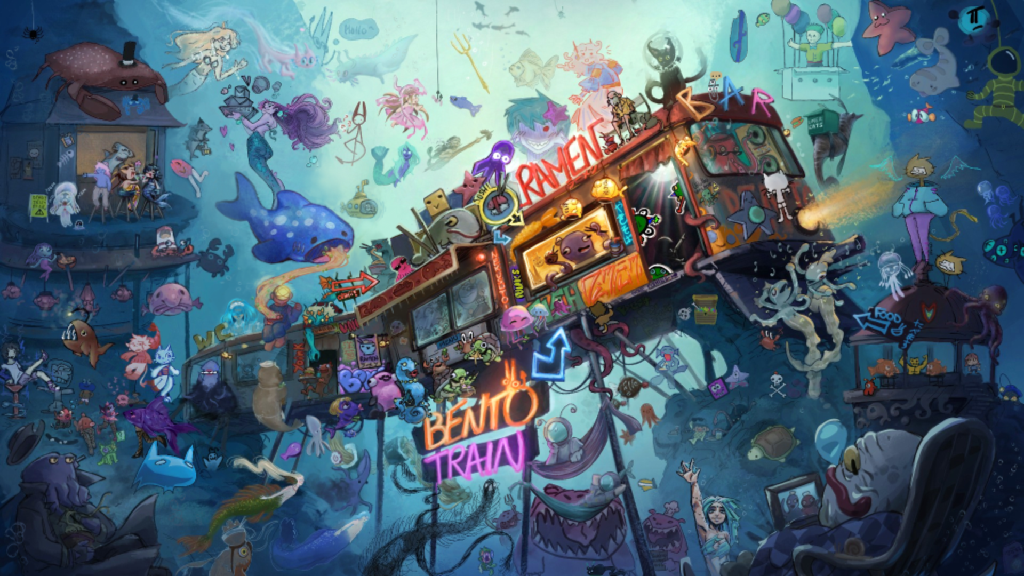
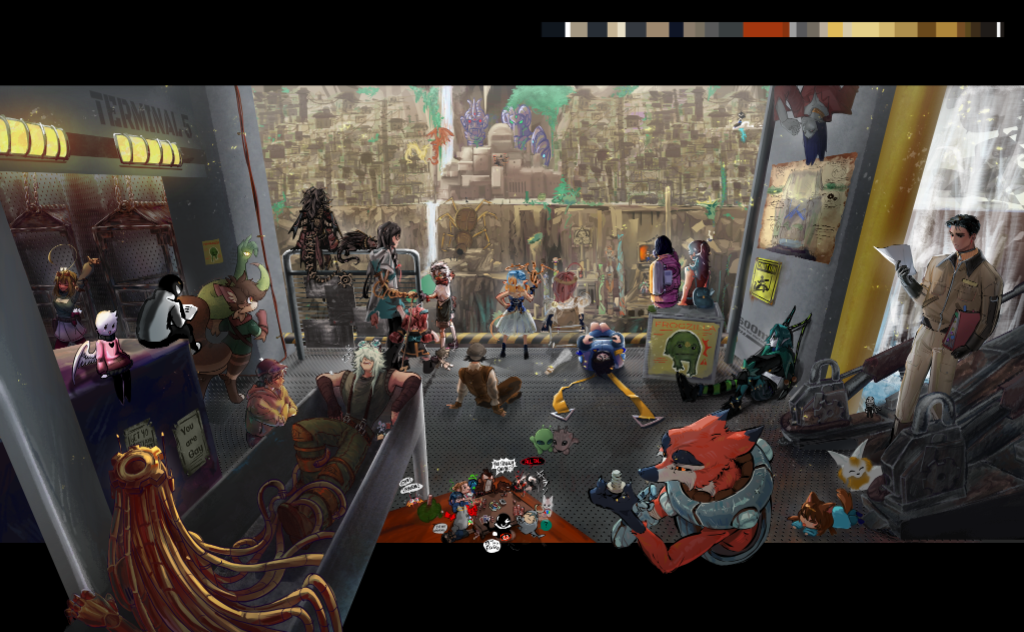
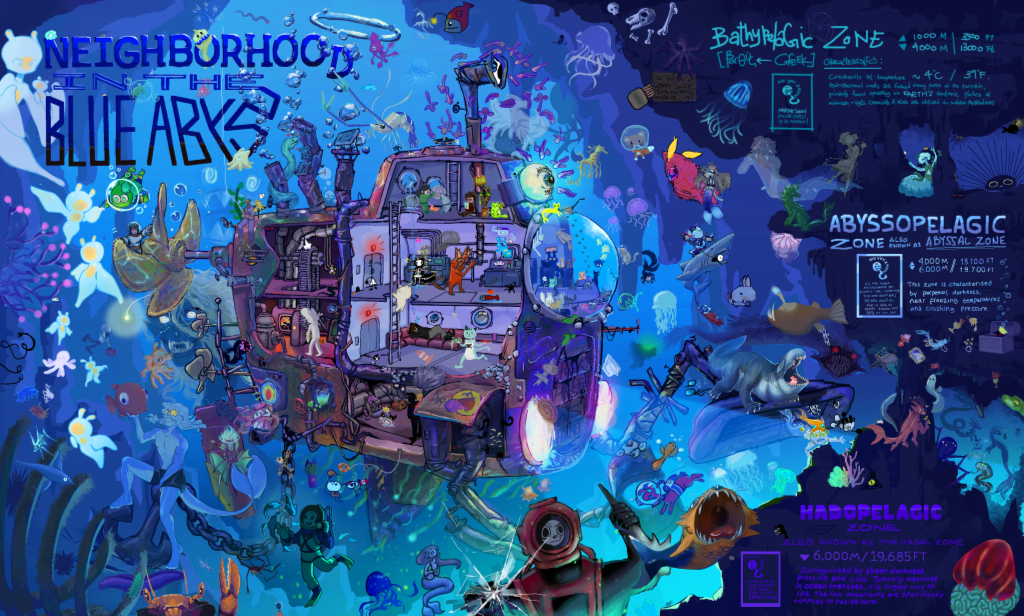
Made together in Magma

Frequently asked questions
What's the best drawing app for a Chromebook?
It depends on what you need. For drawing with friends or a class, with nothing to install, Magma is built for that. For quick doodles, Chrome Canvas is built in. If you want to work offline, an Android app from Google Play is the better choice.
Can you draw on a Chromebook without a stylus?
Yes. You can draw in Magma with a touchpad, a mouse or your finger on a touchscreen. Turn up the stabilizer for smoother lines. A stylus or pen tablet gives you more control.
Does Magma support pen pressure on Chromebooks?
Magma uses whatever pressure Chrome reports from your pen. Some Chromebook and pen combinations send pressure to the browser and some don't, so draw a light and a firm stroke to check yours.
Is Magma free on a Chromebook?
Yes. The free Spark plan works in Chrome on any Chromebook: a 4096 px canvas, 60 layers, layered PSD export and drawing with up to 30 people. Blaze ($9.99/month) raises the limits.
Can I use Magma on a school Chromebook?
If your school hasn't blocked magma.com, yes: there's nothing to install. Magma accounts are for people 13 and over. Schools can ask about Fusion for Education through the pricing page.
Can I draw with friends on a Chromebook?
Yes. Share your canvas link and friends can join from their own Chromebook, PC or tablet and draw on the same canvas live. More about drawing together
Does Magma work offline on a Chromebook?
No. Magma saves your work to the cloud as you draw, so you need an internet connection.
Can I use Magma on other devices too?
Yes. It runs in any modern browser on Windows, Mac, Linux, iPad and Android tablets, and there's a desktop app for Windows and Mac. Your canvases are the same everywhere.
Keep exploring
Open Magma on your Chromebook and start drawing
Nothing to install and no Android app. Share the canvas link and friends or your whole class can draw on it with you.